
- Introduction to SureContact Dashboard
- How to Install and Connect the SureContact WordPress Plugin
- What Do Contact Fields Mean in the SureContact WordPress Plugin
- How to Invite Members to a Workspace in SureContact
- How to Switch Organizations in SureContact
- Workspace-Level Contact Allocation in SureContact
- Workspace-Level Timezone Settings in SureContact
- How to Add a Custom Tracking Domain in a Workspace in SureContact
- SureContact MCP Server
- Creating Forms in SureContact
- Setup SMTP in SureContact
- Email Campaigns in SureContact
- How to Add a Preferences URL in Your Emails
- How to Share Email Templates in SureContact
- Spintax Feature in SureContact
- Deleting Sent Campaigns in SureContact
- A/B Testing Integration Guide
- How to Add an Unsubscribe Link in Your Emails
- Analyzing a Campaign with AI (Spam & Ethics Check)
- FluentCRM Integration with SureContact
- SureContact Third-Party Integration — Step-by-Step Guide
- Fluent Forms Integration with SureContact
- SureForms Integration with SureContact
- WPForms Integration with SureContact
- Bulk Sync WordPress Users to SureContact
- Contact Form 7 Integration with SureContact
- Sync WooCommerce Customers with SureContact
Manual Trigger Automation Guide
SureContact’s Manual Trigger feature lets you instantly run any active automation workflow for a specific contact directly from their CRM profile, no need to wait for a scheduled trigger or set up a new campaign.
This guide walks through the complete process of manually triggering an automation, from finding a contact through to confirming execution in the history log.
Prerequisites
Before using the Manual Trigger feature, please ensure the following:
1. An Active SureContact Account
You must be logged in to your SureContact account with access to the CRM module. Contact your administrator if you do not have the required permissions.
2. At Least One Active Automation Workflow
One or more automation workflows must already be created and set to Active status in SureContact. Only active automations will appear in the Manual Trigger dropdown. If no automations are available, navigate to Automations → Workflows to create one first.
3. A Contact Record in the CRM
The contact you wish to trigger the automation for must already exist in your CRM. You can add new contacts via CRM → Contacts → Add Contact before proceeding.
How to Use Manual Trigger
Follow the steps below to manually trigger an automation workflow for a contact.
1. Open the CRM Contacts List
- In the left sidebar, click CRM to expand the section, then click Contacts.
- The Contacts list will display all contacts in your account.
- Locate the contact you want to trigger the automation for. You can use the search bar at the top of the list to filter by name or email.
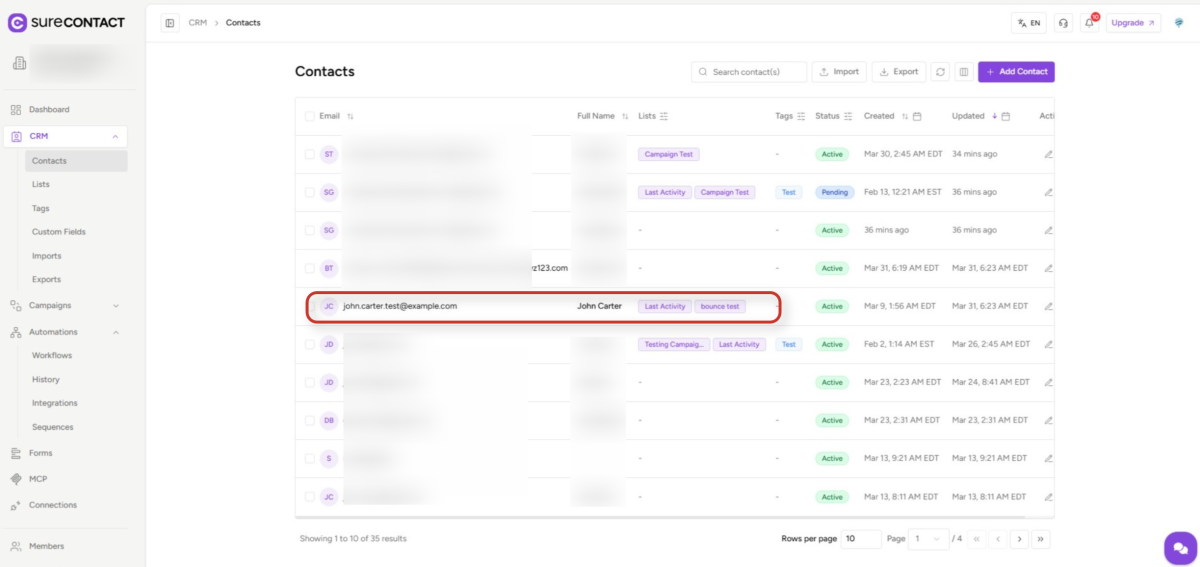
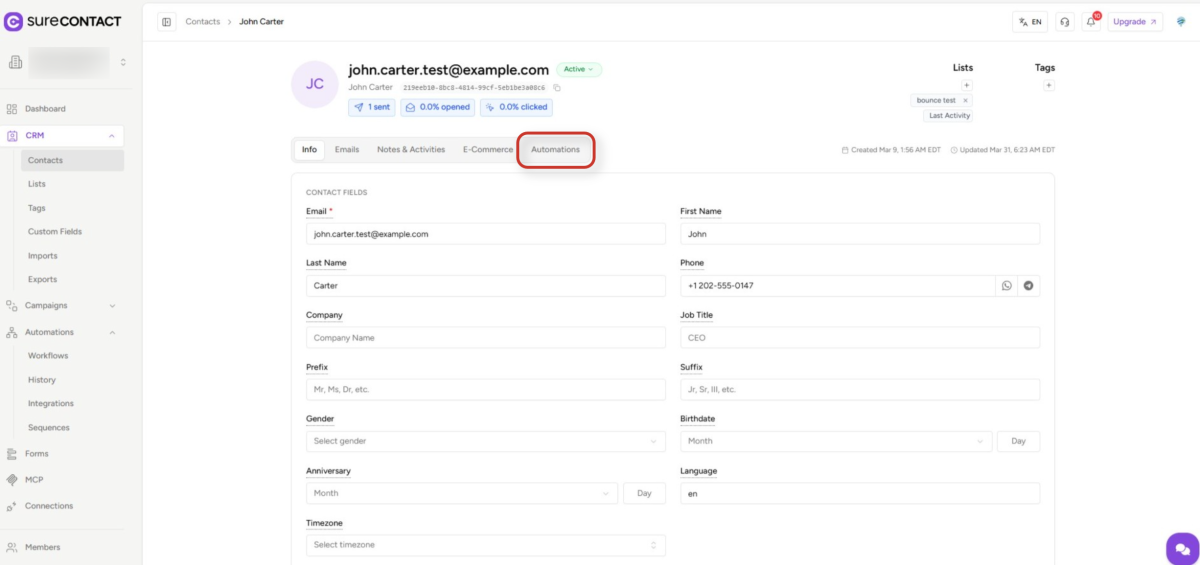
2. Open the Contact Profile and Navigate to the Automations Tab
- Click the contact’s name or row to open their profile page.
- On the contact profile, you will see several tabs near the top of the page (e.g., Overview, Automations, History, etc.).
- Click the Automations tab to reveal the Manual Trigger Automation section.
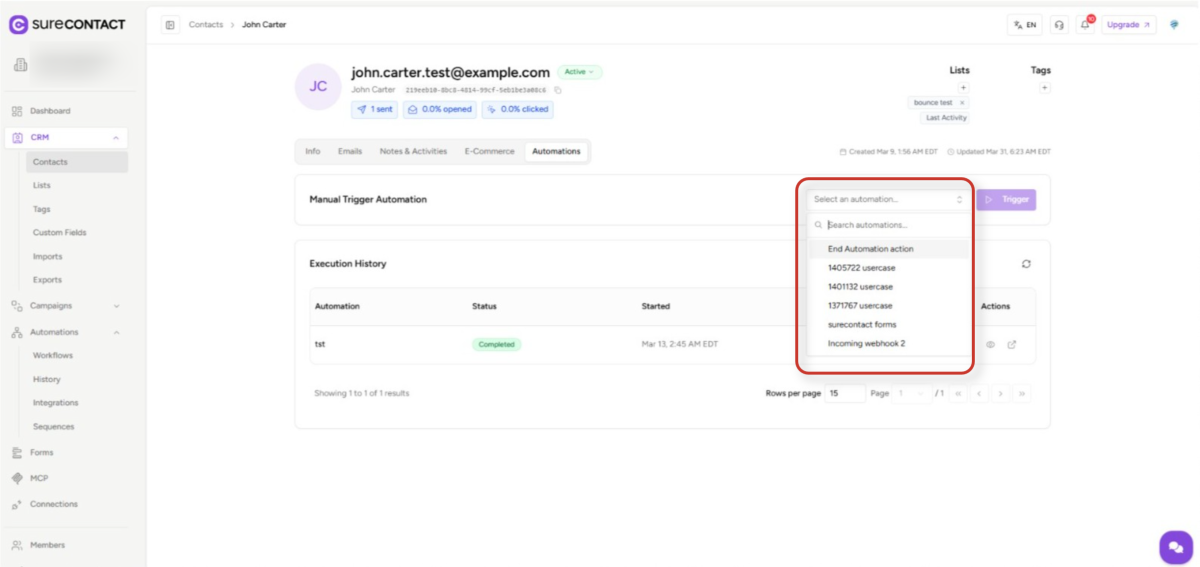
3. Select an Automation from the Dropdown
- In the Manual Trigger Automation section, click the dropdown field labelled “Select Automation”.
- A list of all active automation workflows in your account will appear.
- Scroll through the list or type to search, then click the automation you want to run for this contact.
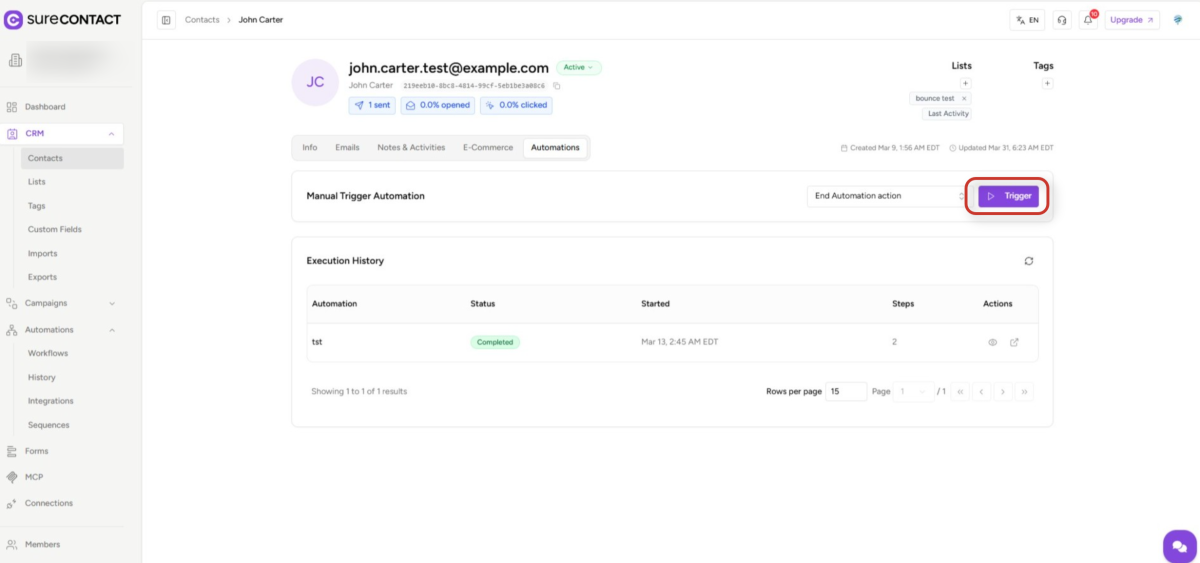
4. Click the Trigger Button
- Once you have selected an automation from the dropdown, the Trigger button will become active.
- Click the Trigger button to initiate the workflow for this contact.
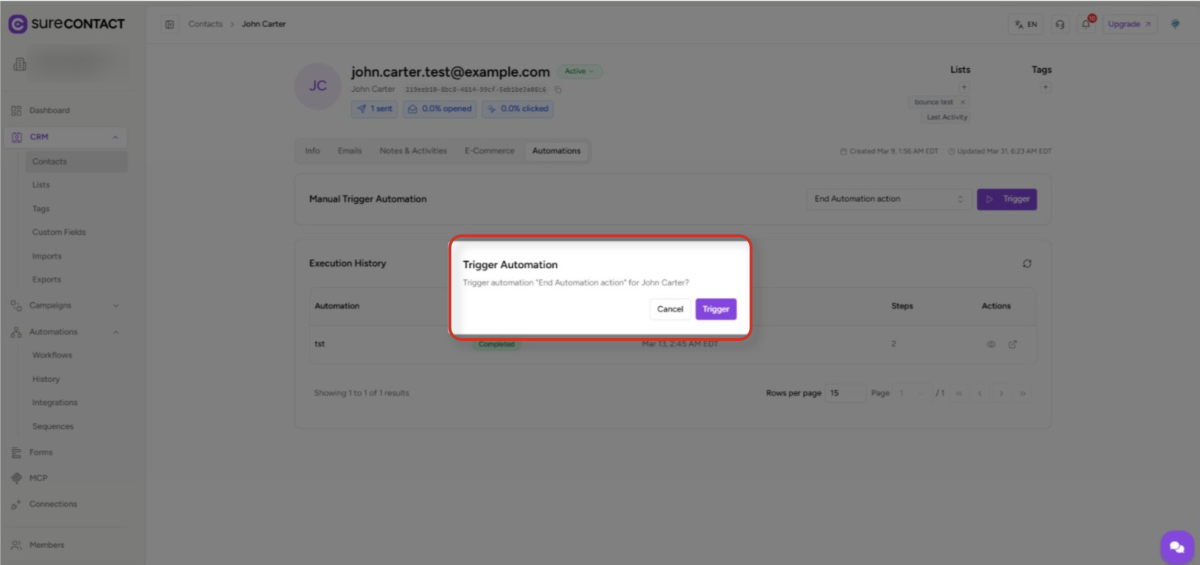
- A confirmation dialog will appear asking you to verify the action before it runs.
5. Confirm the Trigger Action
- A modal dialog titled “Trigger Automation” will appear, displaying the name of the selected automation and the contact it will run for.
- Review the details to ensure the correct automation and contact are selected.
- Click Confirm (or the confirmation button) to proceed, or Cancel to go back and make changes.
6. Verify Execution in Automation History
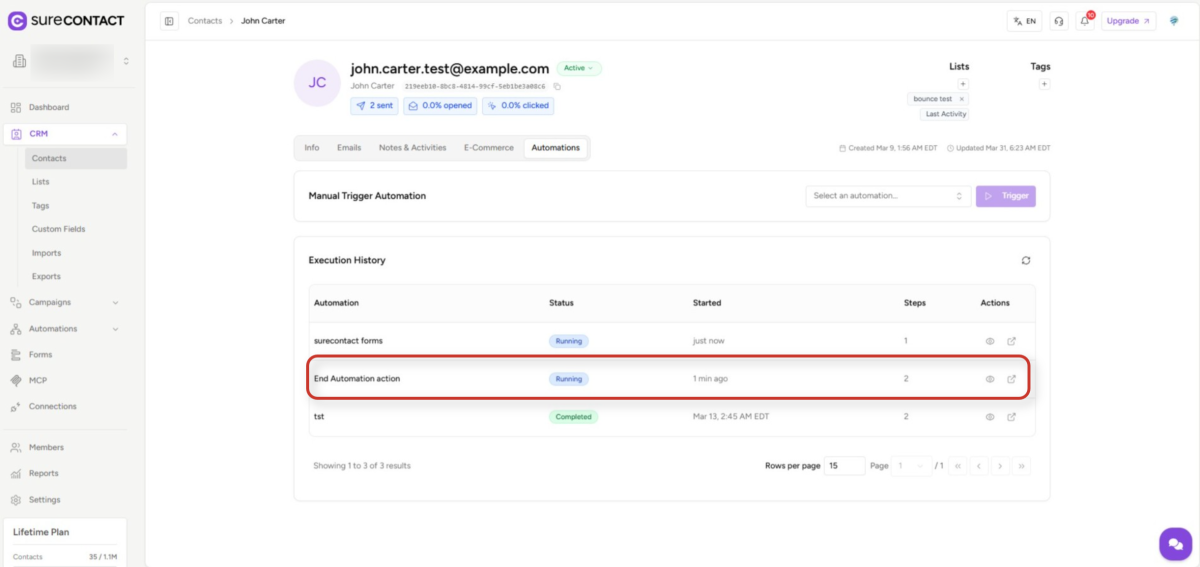
- After confirming, a success toast notification will appear at the top of the screen: “Automation has been scheduled successfully”.
- The Execution History table on the same page will update to show the new run, with a status of Completed/Running/Failed once the workflow finishes processing.
- You can review the run details, including the automation name, triggered date, and status, directly in the Execution History section.
That’s it! This is how you can set up manual triggers inside SureContact.
Need Help?
If you need any assistance, please email [email protected], and our support team will be happy to help you.
We don't respond to the article feedback, we use it to improve our support content.