
- Introduction to SureContact Dashboard
- How to Install and Connect the SureContact WordPress Plugin
- What Do Contact Fields Mean in the SureContact WordPress Plugin
- How to Invite Members to a Workspace in SureContact
- How to Switch Organizations in SureContact
- Workspace-Level Contact Allocation in SureContact
- Workspace-Level Timezone Settings in SureContact
- How to Add a Custom Tracking Domain in a Workspace in SureContact
- SureContact MCP Server
- Creating Forms in SureContact
- Create Forms & assign lists & tags
- Multi Language Support(WordPress)
- Page Visit Tracking Guide (WordPress)
- Setup SMTP in SureContact
- Email Campaigns in SureContact
- How to Add a Preferences URL in Your Emails
- How to Share Email Templates in SureContact
- Spintax Feature in SureContact
- Deleting Sent Campaigns in SureContact
- A/B Testing Integration Guide
- How to Add an Unsubscribe Link in Your Emails
- Analyzing a Campaign with AI (Spam & Ethics Check)
- FluentCRM Integration with SureContact
- SureContact Third-Party Integration — Step-by-Step Guide
- Fluent Forms Integration with SureContact
- SureForms Integration with SureContact
- WPForms Integration with SureContact
- Bulk Sync WordPress Users to SureContact
- Contact Form 7 Integration with SureContact
- Sync WooCommerce Customers with SureContact
SureContact MCP Server
Let Your AI Take Action for You
Large language models (LLMs) can write, summarize, analyze, and generate content. But with Model Context Protocol (MCP), your AI can now go a step further; it can actually perform actions inside SureContact on your behalf.
With SureContact MCP, you can connect AI tools like Cursor or Claude Desktop and give natural language commands such as:
- “Create a new contact with this email address.”
- “Add this contact to a specific list.”
- “Fetch campaign statistics.”
- “Update this contact’s tag.”
Instead of manually performing actions inside SureContact, your AI does it for you.
What is MCP?
Model Context Protocol (MCP) is a standardized protocol that allows AI tools to securely connect with external applications and execute approved actions.
In simple terms:
- MCP acts as a bridge between your AI and SureContact
- You decide what permissions the AI gets
- The AI can securely perform those actions for you
No complex integrations. No custom coding.
Before You Start: Install Node.js (Required)
Node.js is required because MCP uses the npx mcp-remote command to establish a secure connection.
For Windows:
- Go to the official Node.js website: https://nodejs.org
- Click on Windows Installer (.msi) under the LTS version
- Download and run the installer
- Follow the installation wizard steps
- Once installed, open Command Prompt and verify: node -v
- Then verify npx: npx -v
If both return version numbers, you’re ready.
For Mac:
- Visit the official Node.js website: https://nodejs.org
- Click on the macOS Installer under the LTS (Long-Term Support) version.
- Download the .pkg file and run the installer.
- Follow the installation steps provided by the installer.
- After installation, open Terminal and type the following command to confirm Node.js is installed:
node -v - This should display the installed Node.js version.
- Also, verify npx by running: npx -v
⚠️ Important: MCP will not work in Cursor or Claude if Node.js is not installed.
How to Connect SureContact MCP to Cursor
Step 1: Open MCP Setup in SureContact
- Log in to your SureContact account
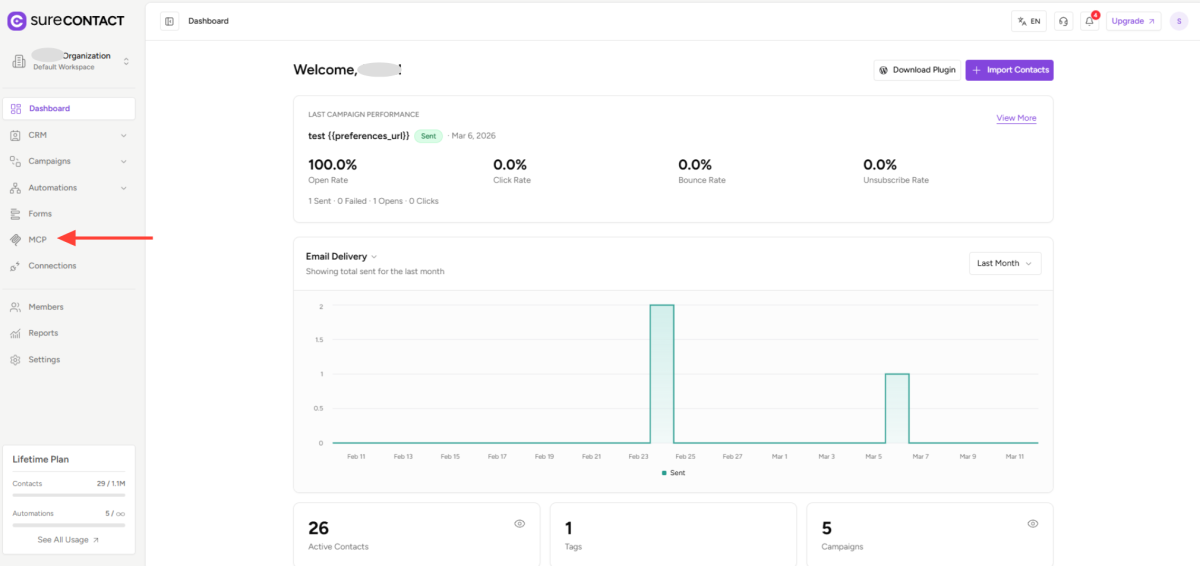
- From the left sidebar, click MCP.
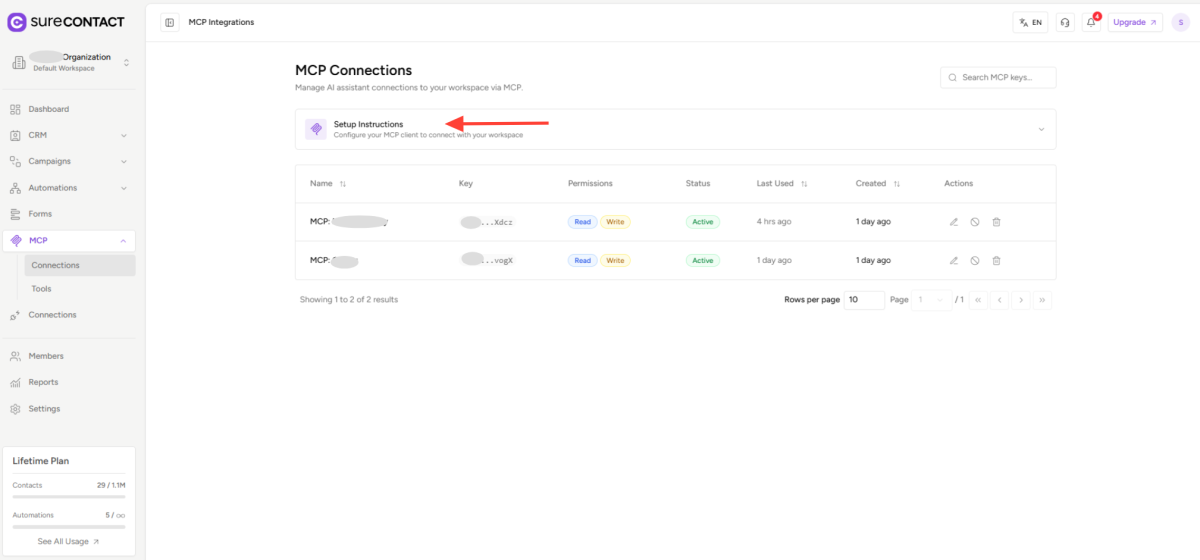
- Click Setup Instructions.
Step 2: Get the Cursor Configuration
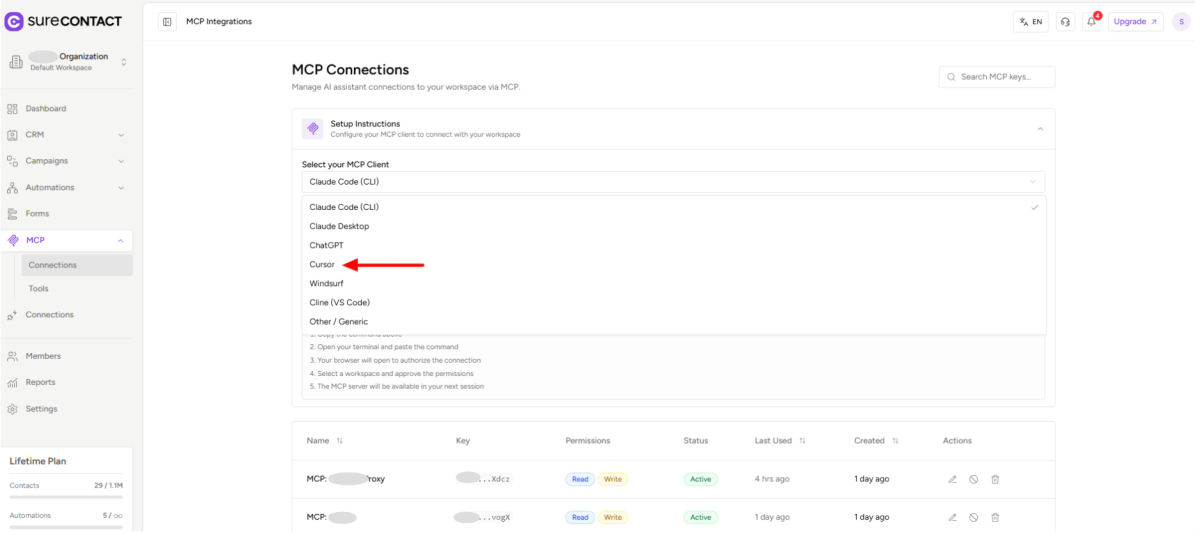
- In Select your MCP Client, choose Cursor.
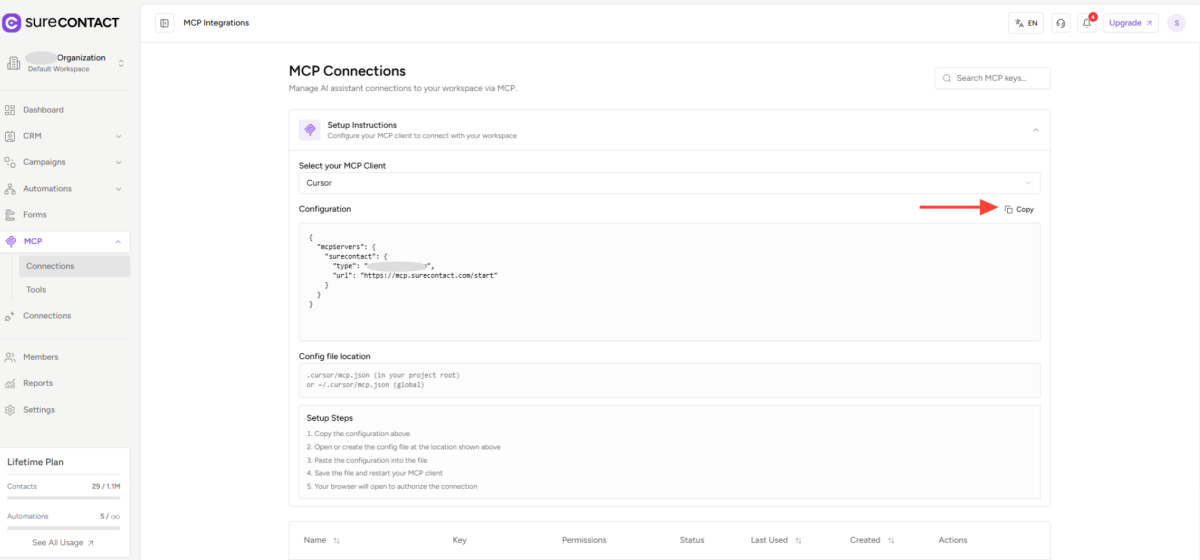
- Click Copy Configuration to copy the generated JSON configuration.
Step 3: Configure MCP in Cursor
- Open the Cursor application
- Click Settings

- Go to Tools & MCP
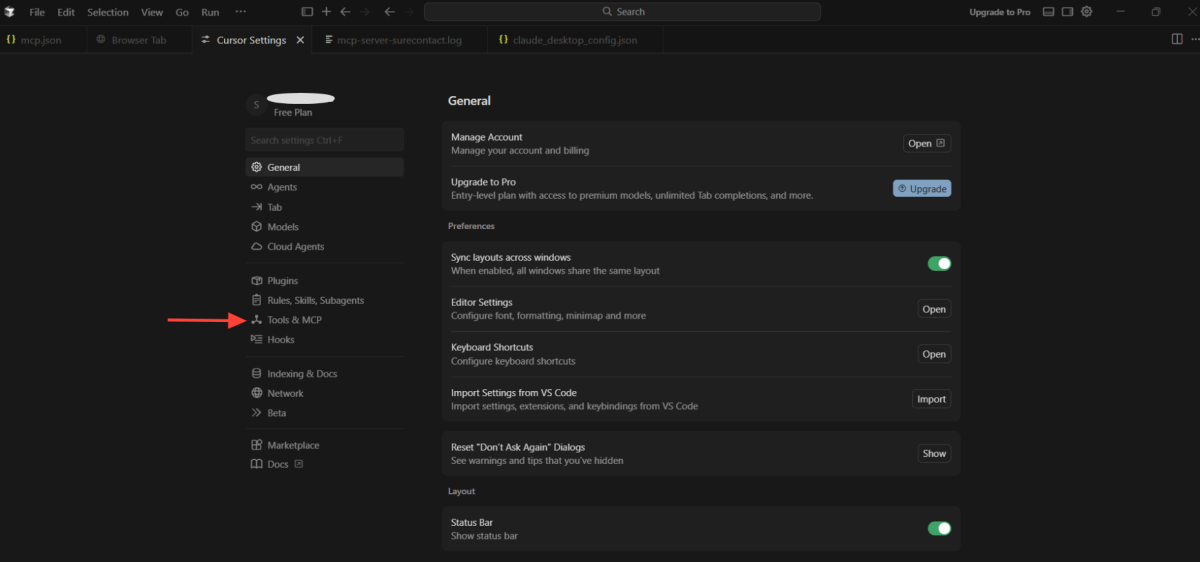
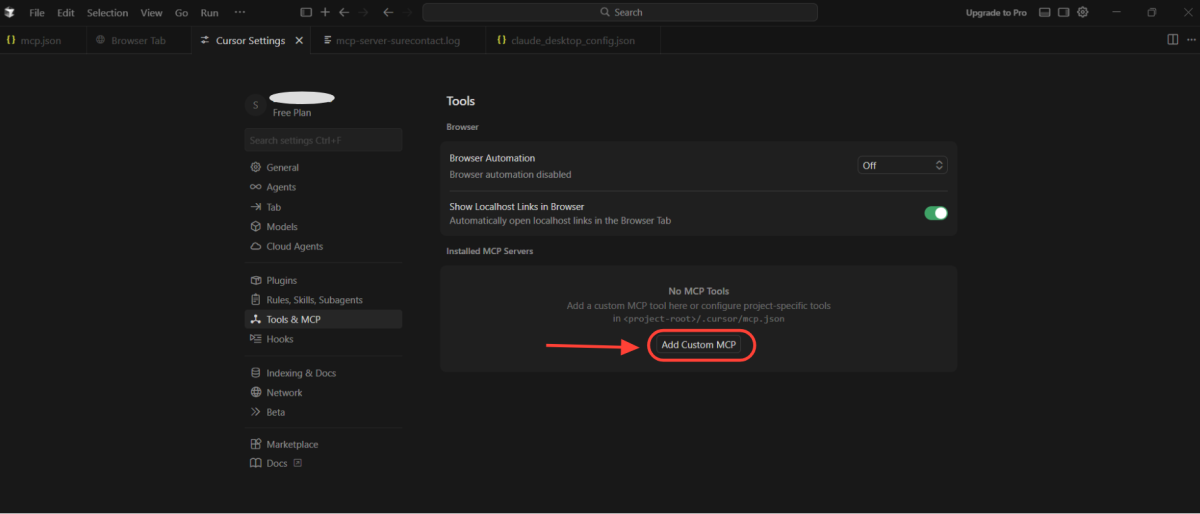
- Click New MCP Server
- Paste the configuration you copied
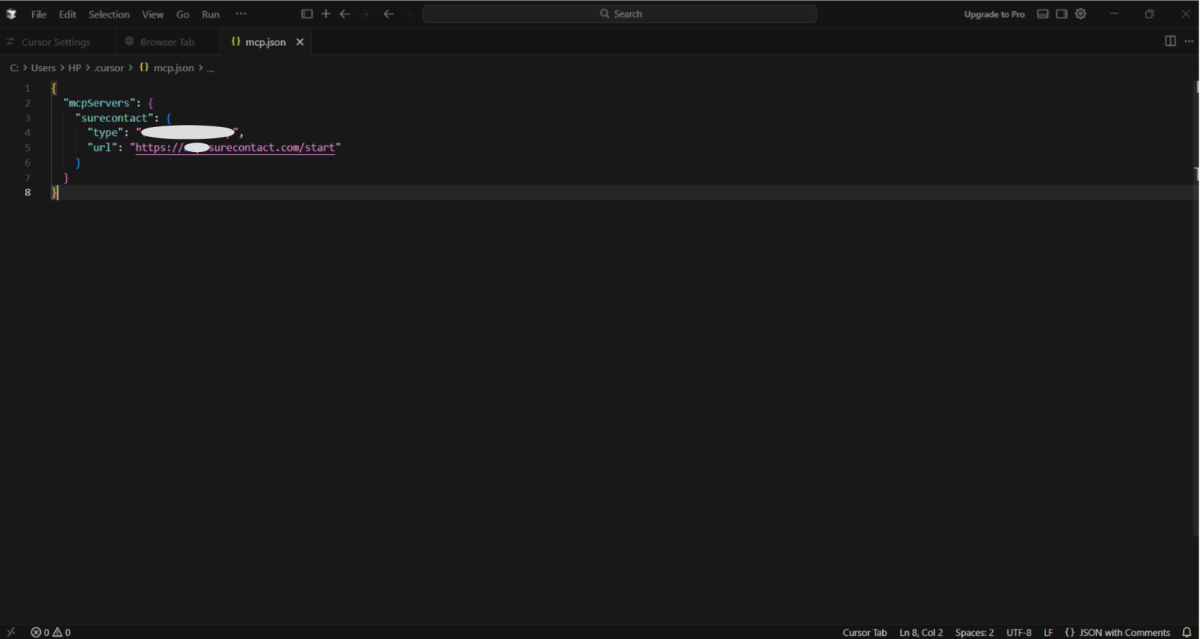
- Save and close
Step 4: Authenticate the Connection
- Go back to Cursor → Settings → Tools & MCP
- You will see SureContact listed as an available MCP server
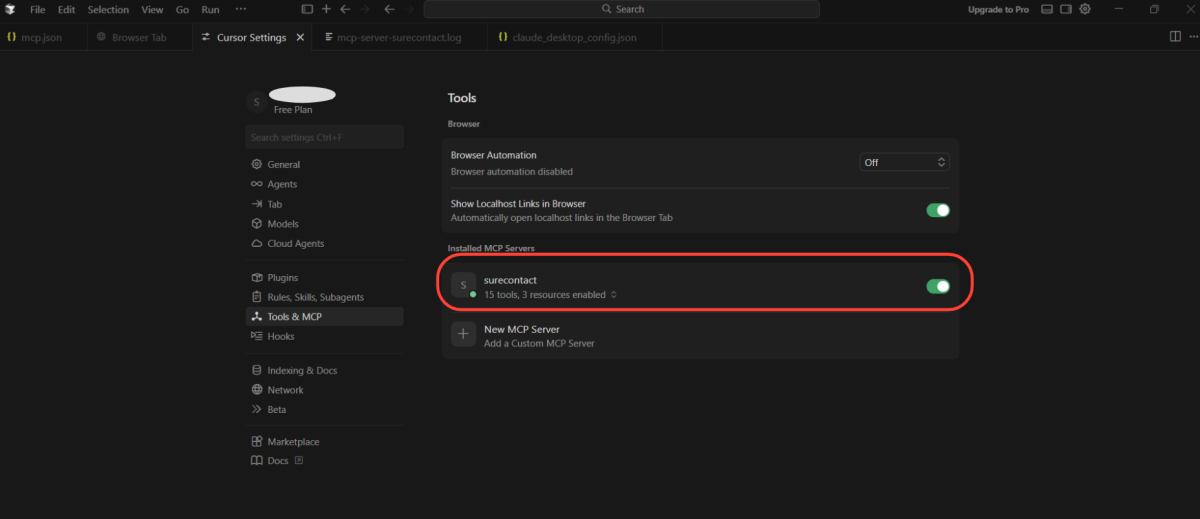
- Click Connect beside SureContact.
- You will be redirected to a browser window asking you to connect your SureContact workspace.
- Click Authorize.
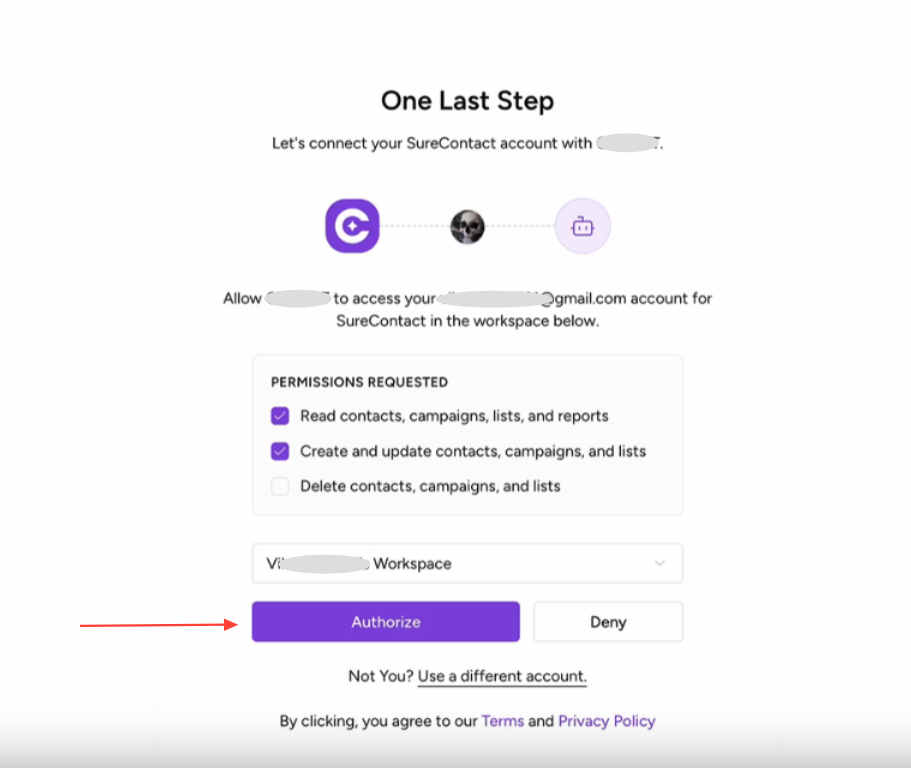
Once authorized, you will see an Authorization Successful message.
- You will then be prompted to open Cursor again. Click Open Cursor.
Step 5: Verify the Connection
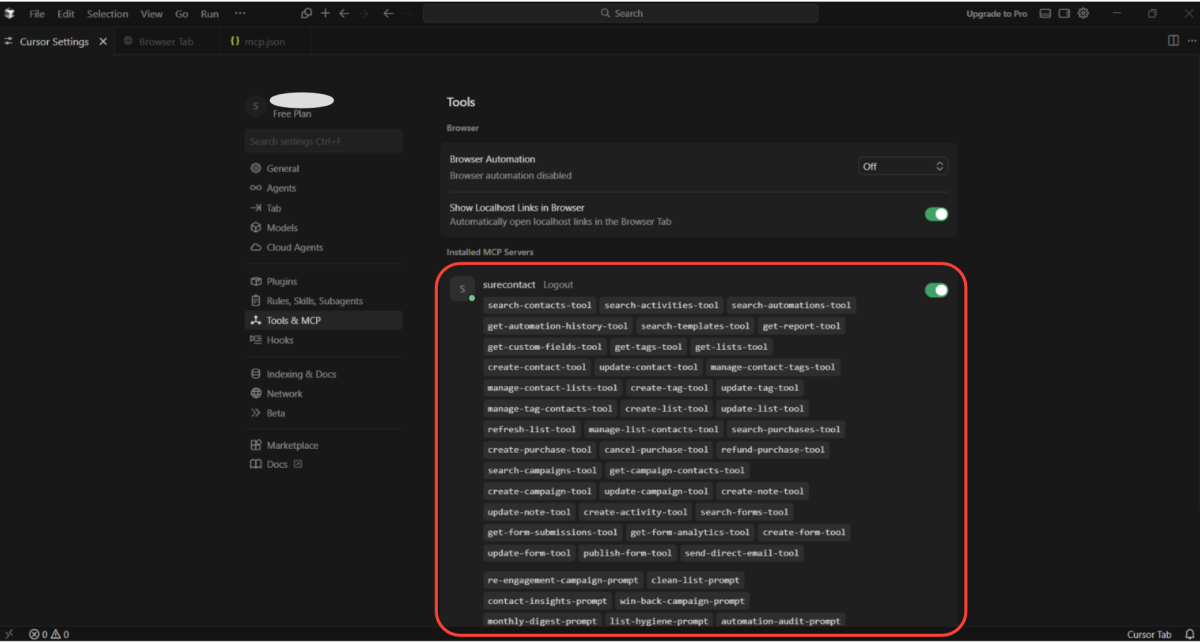
- Go back to Cursor → Settings → Tools & MCP.
- You should now see SureContact connected successfully.
- The available events and actions will be listed under the SureContact MCP server.
Step 5: Start Using It
- Click New Agent
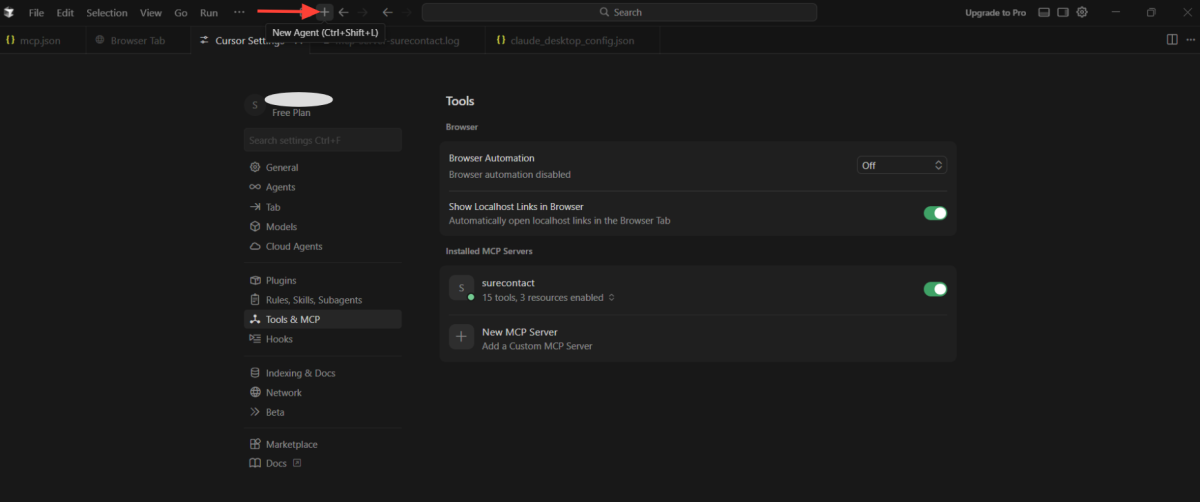
- Enter your query in natural language
Example:
- “Create a new contact named John with email [email protected]”
- “Add this contact to my newsletter list”
That’s it, SureContact MCP is now connected to Cursor.
How to Connect SureContact MCP to Claude Desktop
Step 1: Open MCP Setup in SureContact
- Log in to your SureContact dashboard.
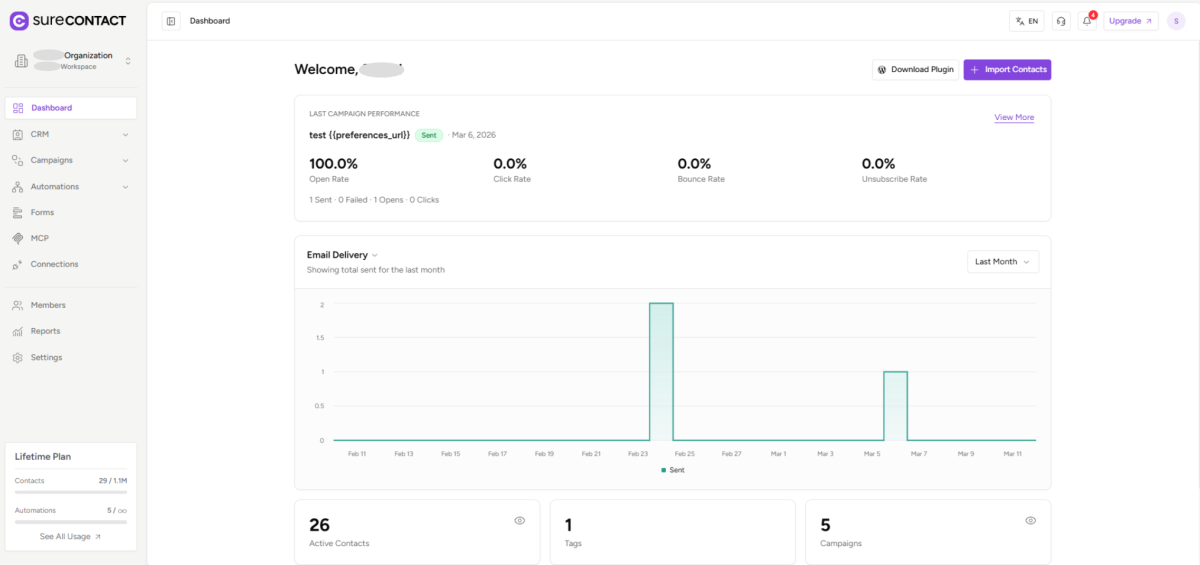
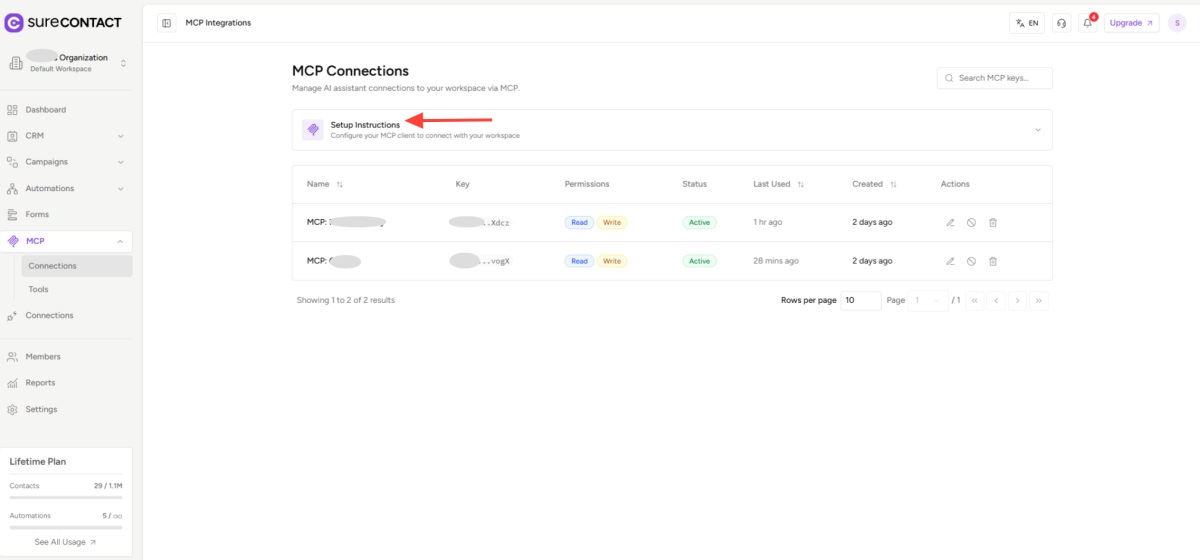
- Click on MCP from the sidebar.

- Click Setup Instructions.
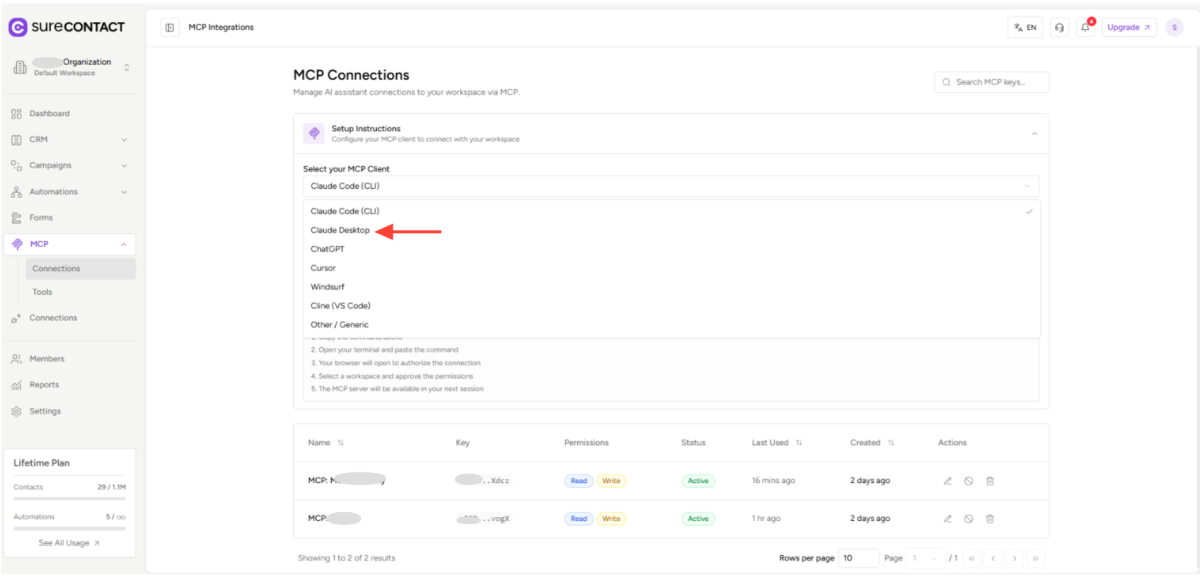
- From the MCP Client dropdown, select Claude Desktop.
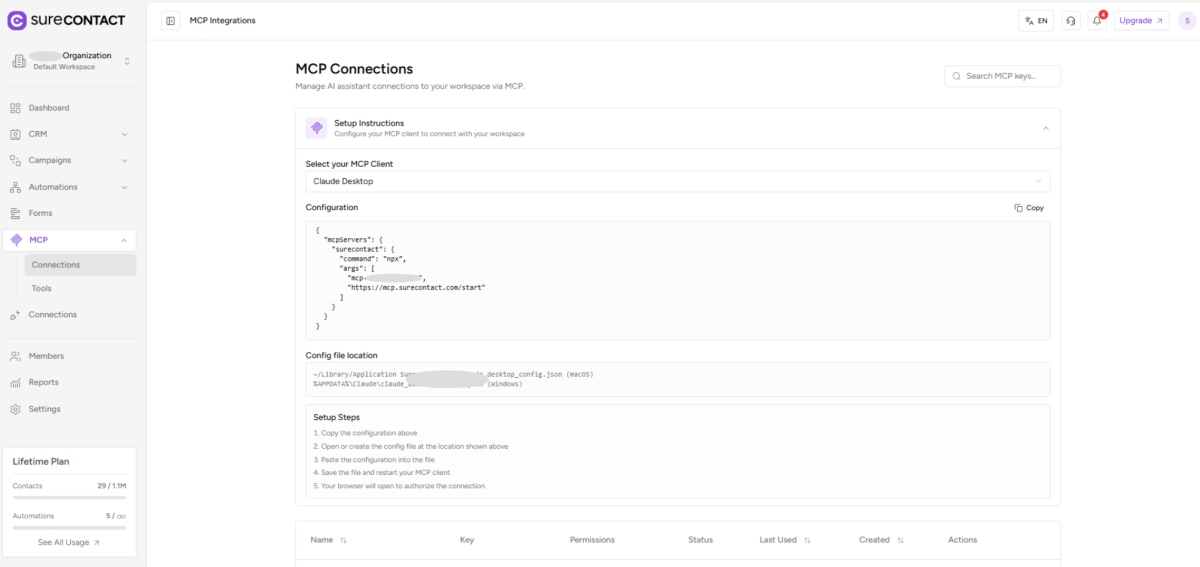
- Copy the configuration provided for Claude Desktop.
Step 2: Open Claude Desktop Settings
- Download and open Claude Desktop
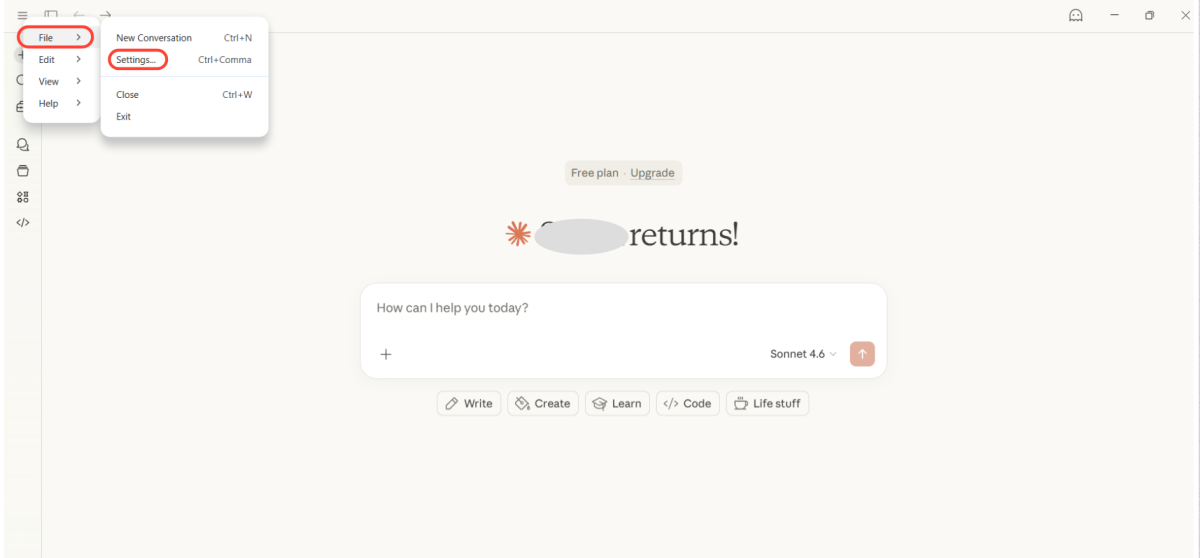
- Click the breadcrumb menu at the top
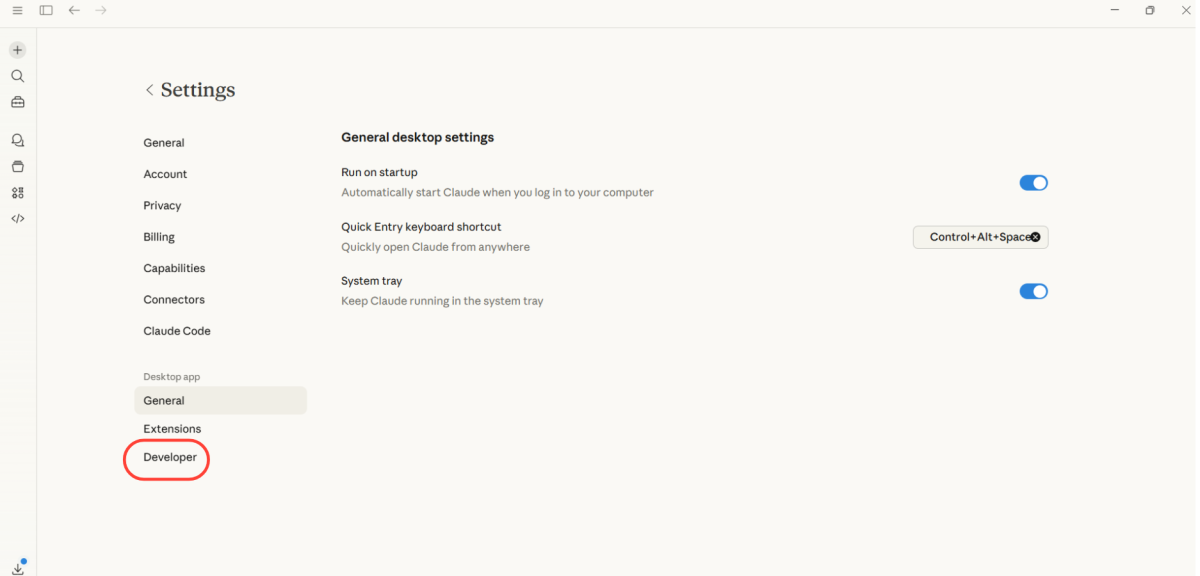
- Go to: File → Settings → Developer
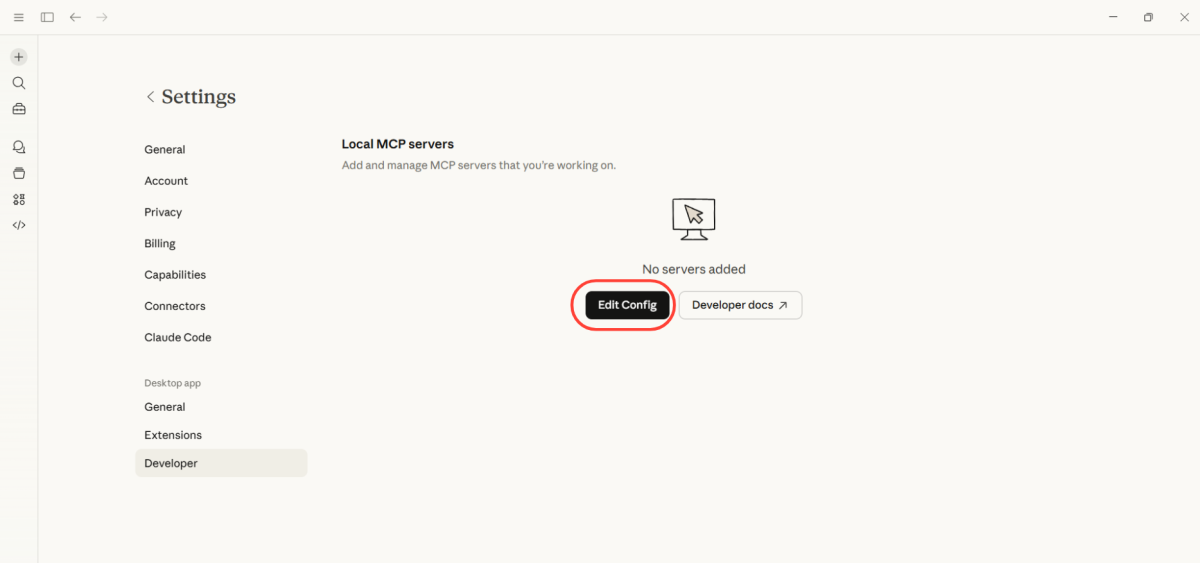
- Click Edit Config
Step 3: Update the Configuration File
- Open the claude_desktop_config.json file in a text editor
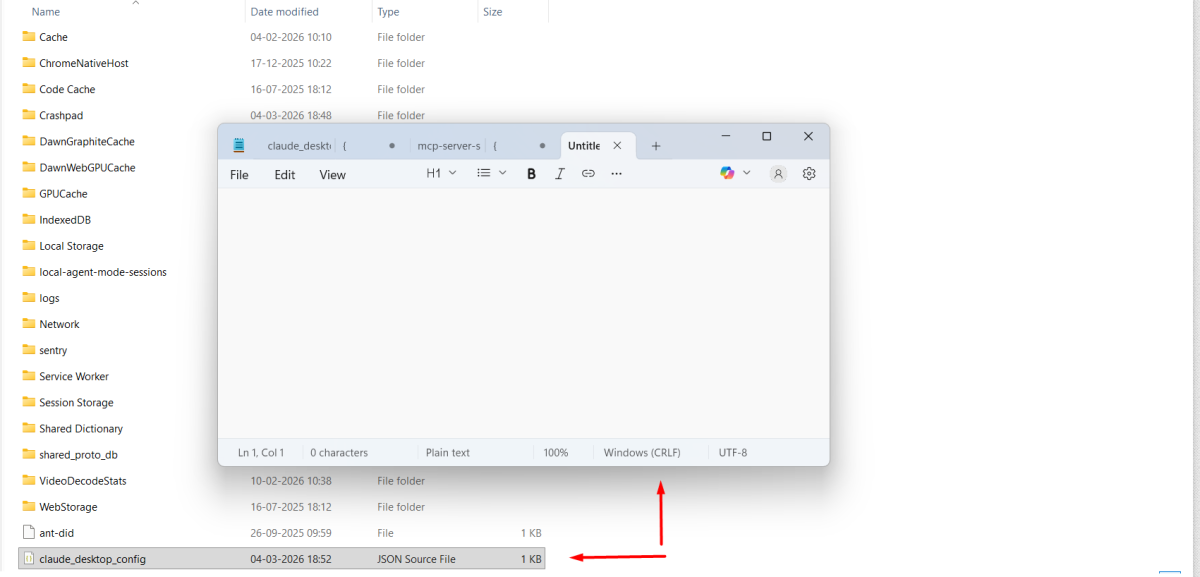
- Paste the MCP configuration copied from SureContact
- Save the file
- Close and reopen the Claude Desktop
Step 4: Authorize the Connection
- Click your Profile icon again.
- Go to Settings → Developer.
- Wait for the page to load.
Claude will automatically open your browser in a new tab, where SureContact will already be loaded.
- Click Authorize.

Step 6: Verify the MCP Connection
Once authorized, SureContact MCP will be connected to Claude Desktop.
You can now test the connection by opening a new chat and giving prompts such as:
- “Show me contacts added today.”
- “Add this user to the Premium Customers list.”
- “Create a new email campaign draft.”
Claude will now be able to securely perform actions inside SureContact using MCP.
If you want, I can also optimize this doc for your SureContact docs site (cleaner headings + shorter steps + better readability) so it looks more professional.
How to Connect SureContact MCP to ChatGPT
Step 1: Open MCP Setup in SureContact
- Log in to your SureContact dashboard.
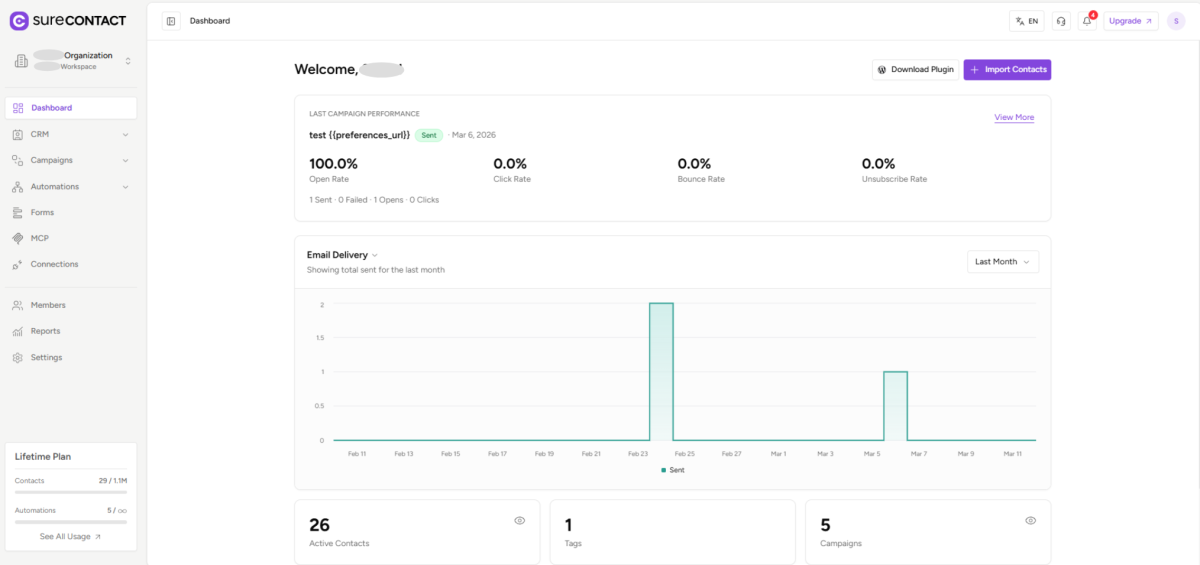
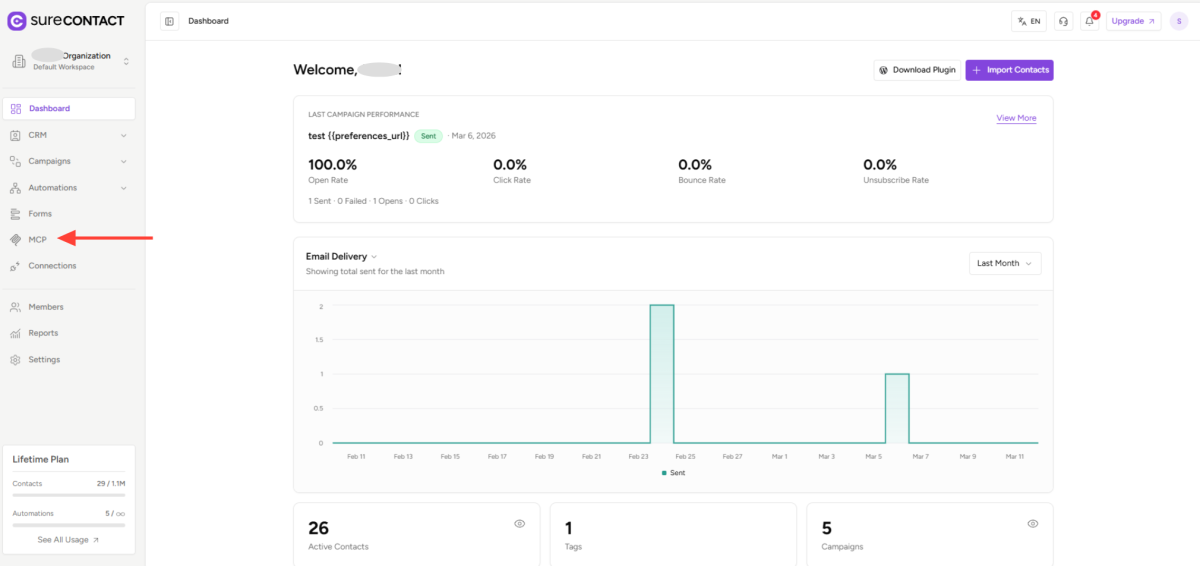
- Click MCP from the left sidebar.
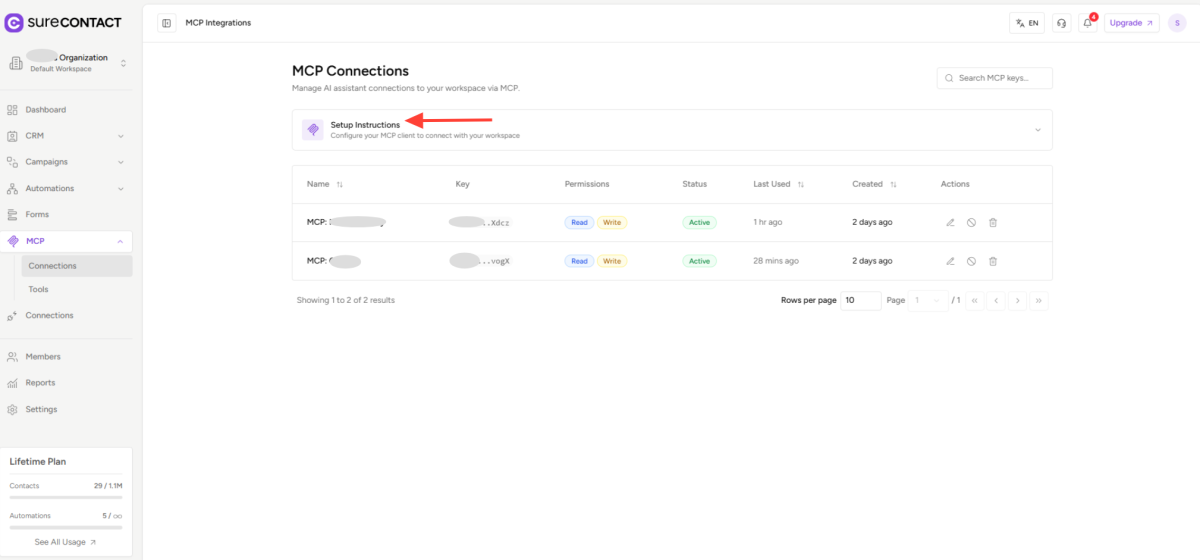
- Click Setup Instructions.
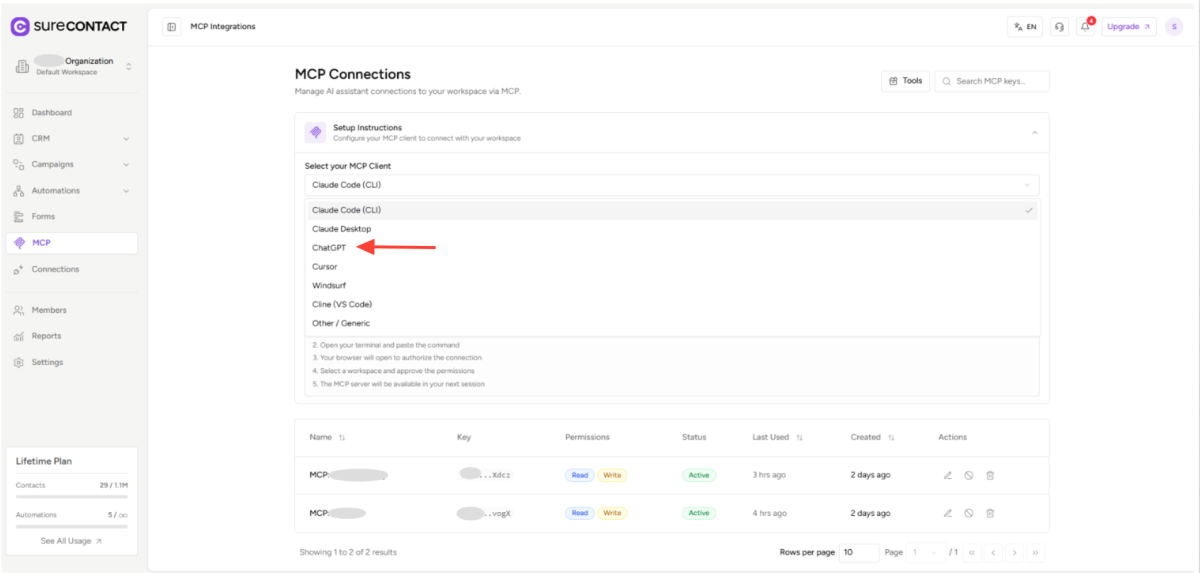
- From the Select your MCP Client dropdown, choose ChatGPT.
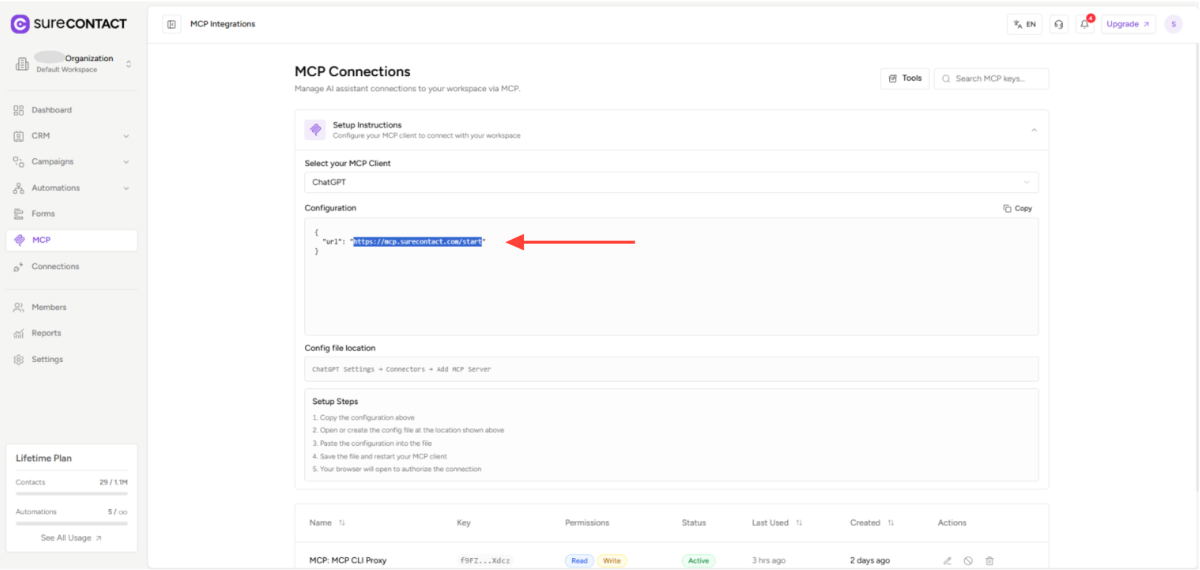
- Copy the MCP Server URL from the configuration (only the URL is required).
Step 2: Open ChatGPT App Settings
- Open your ChatGPT account.
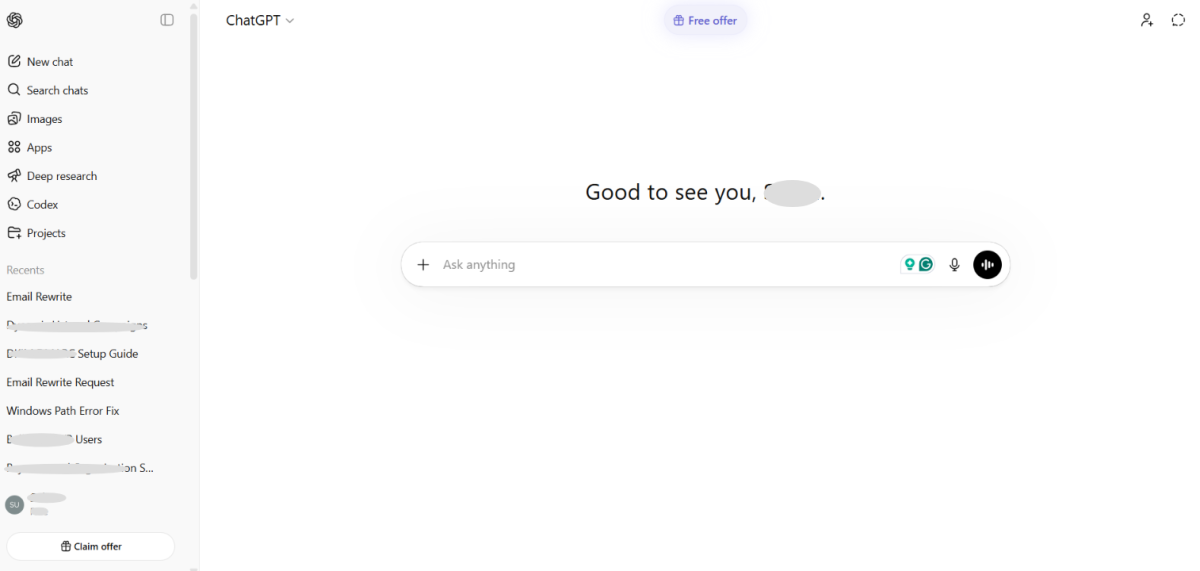
- Click your Profile icon in the bottom-left corner.
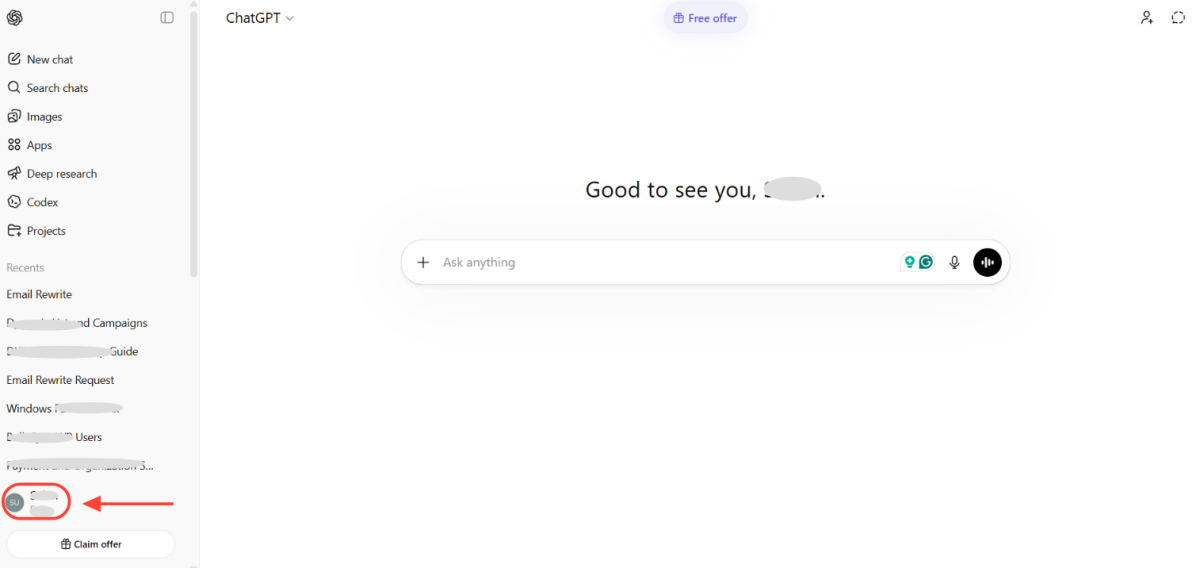
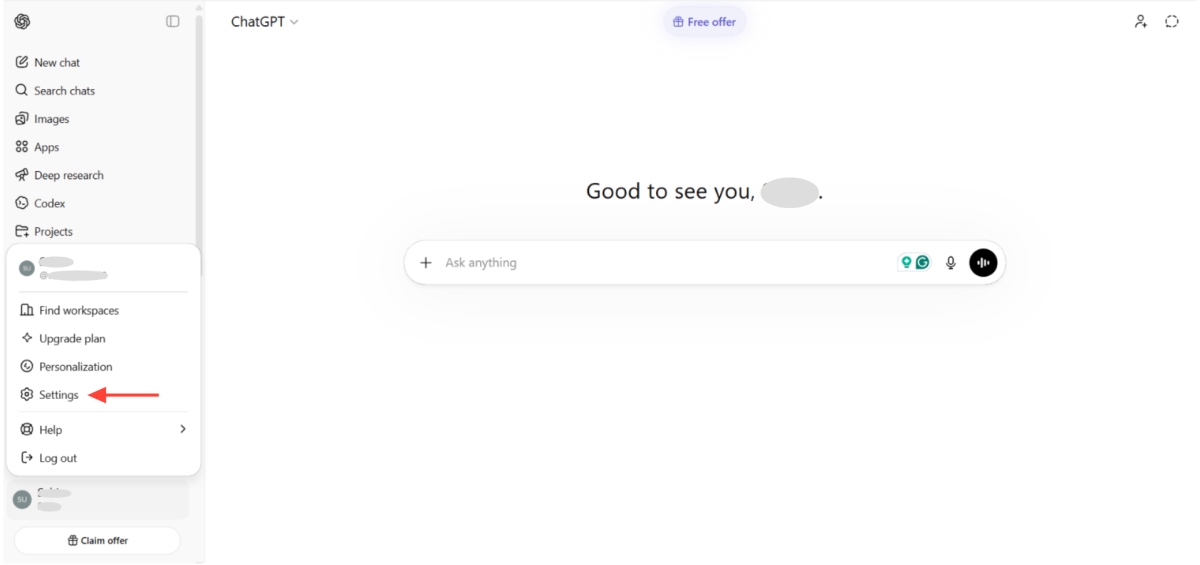
- Click Settings.
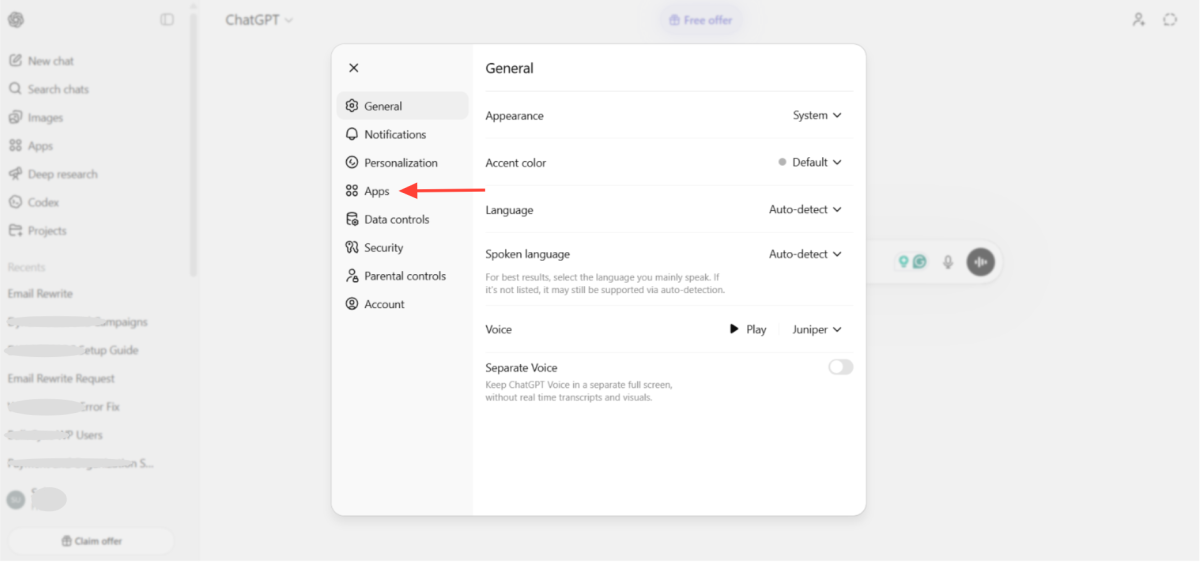
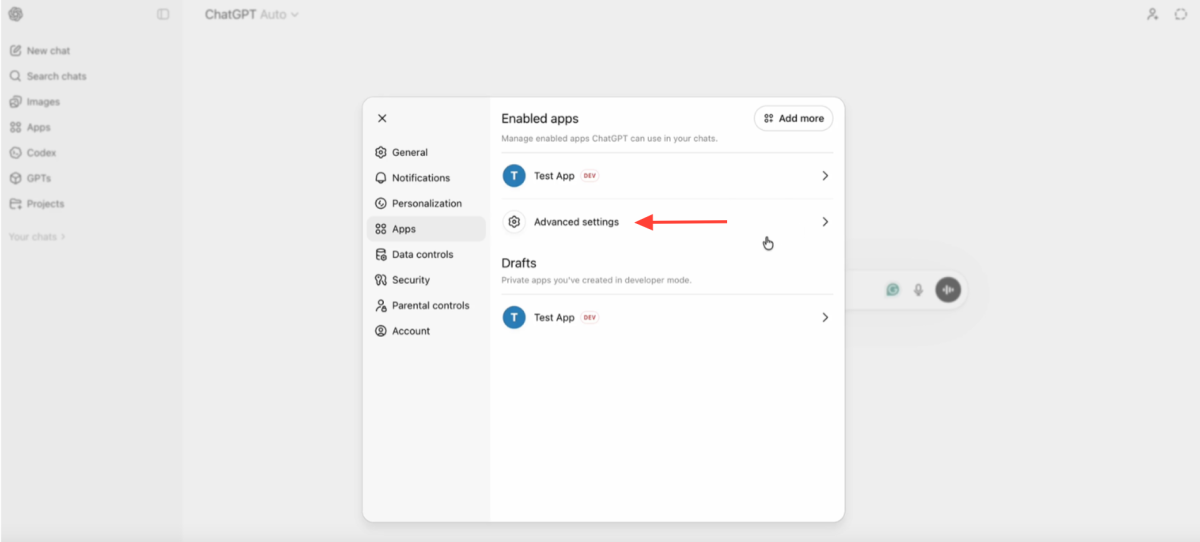
- Navigate to Apps.
- Click Advanced Settings.
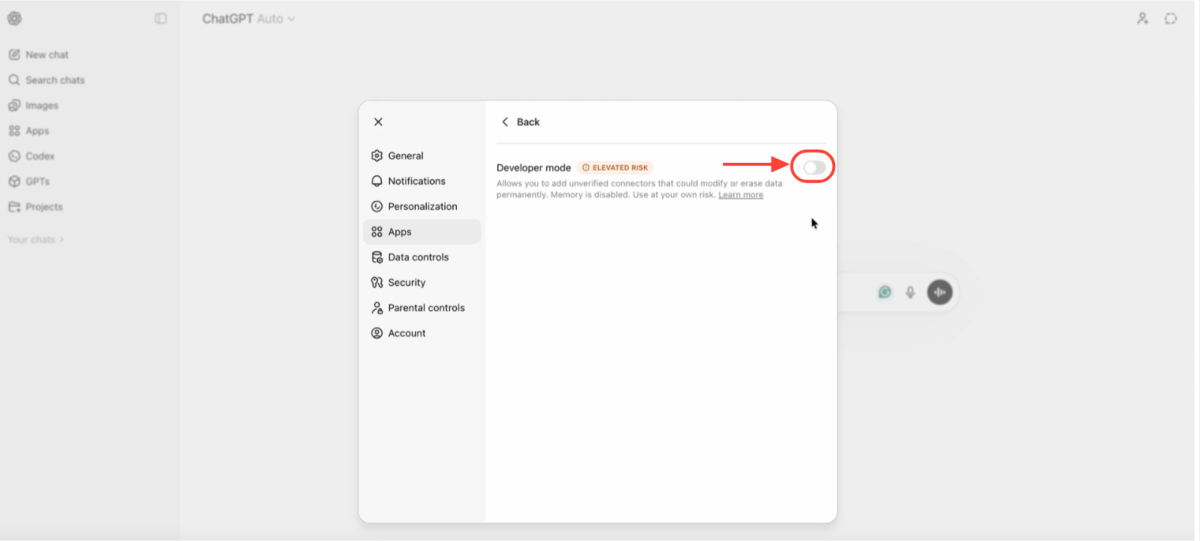
- Enable Developer Mode.
Step 3: Create a New App
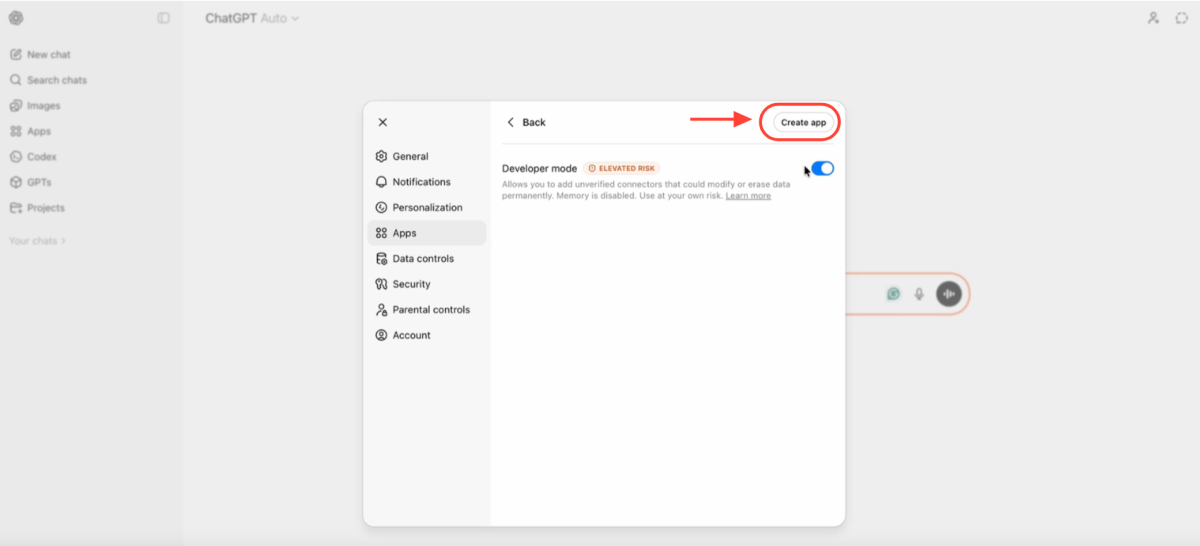
- Click Create App.
- Enter a name for the app.
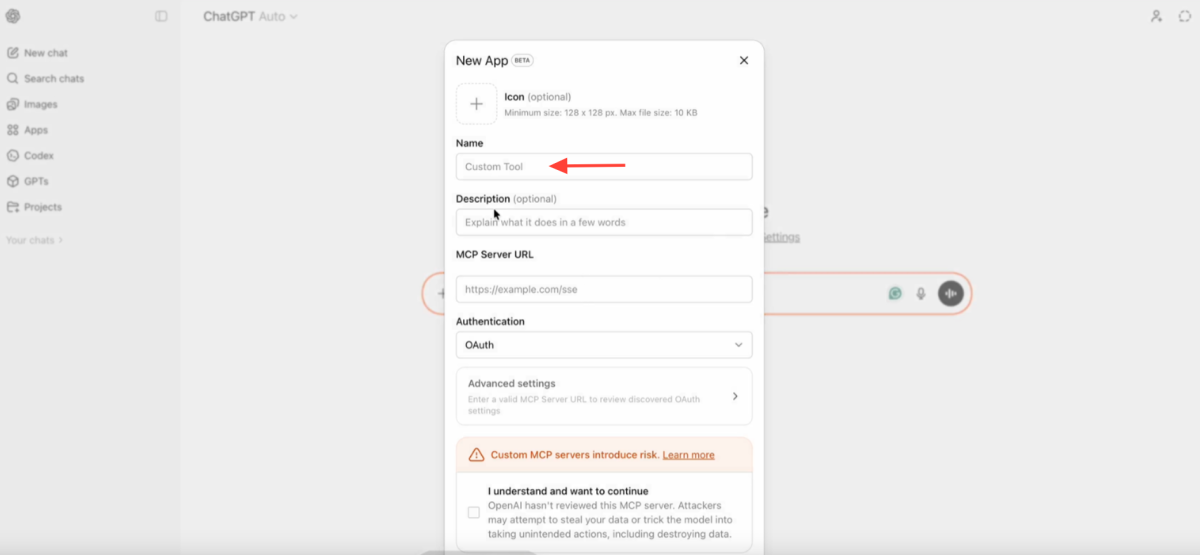
- Paste the MCP Server URL you copied earlier into the MCP Server URL field.
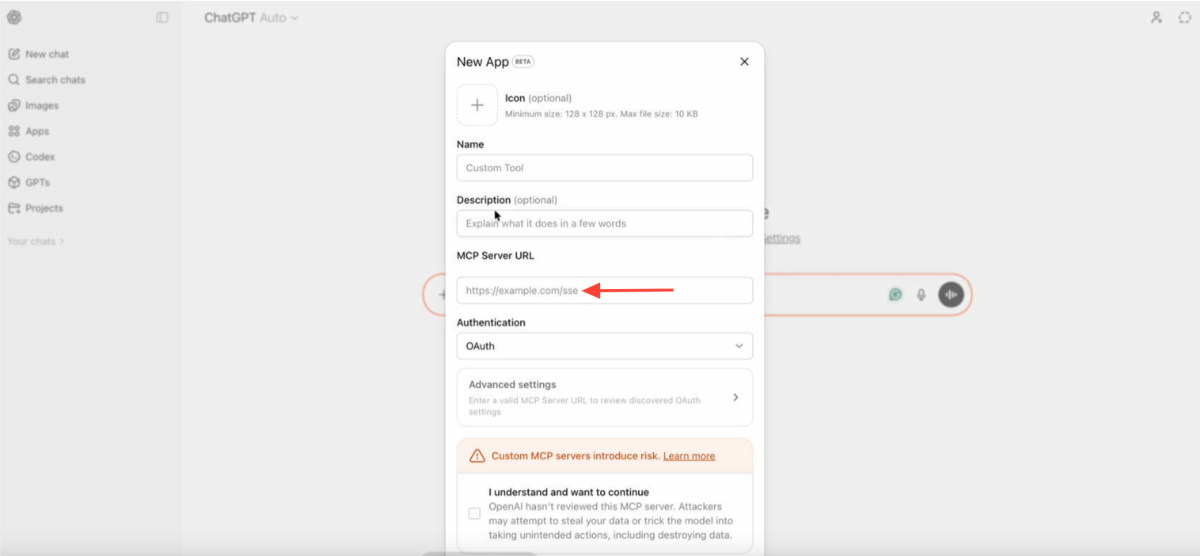
- Set Authentication to OAuth.
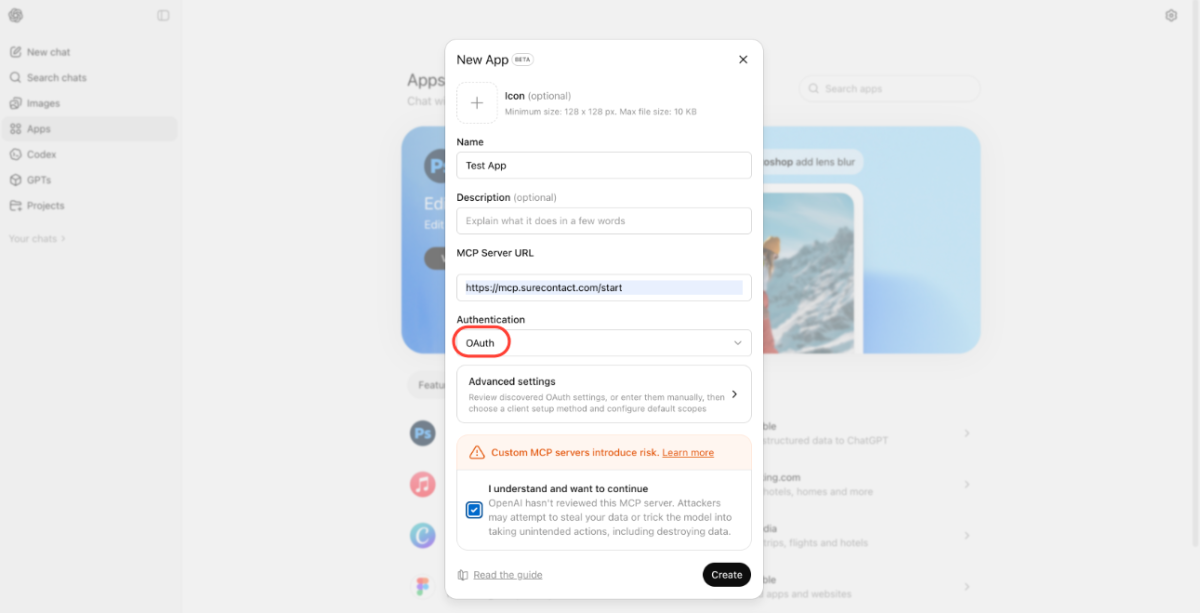
- Select the required permissions.
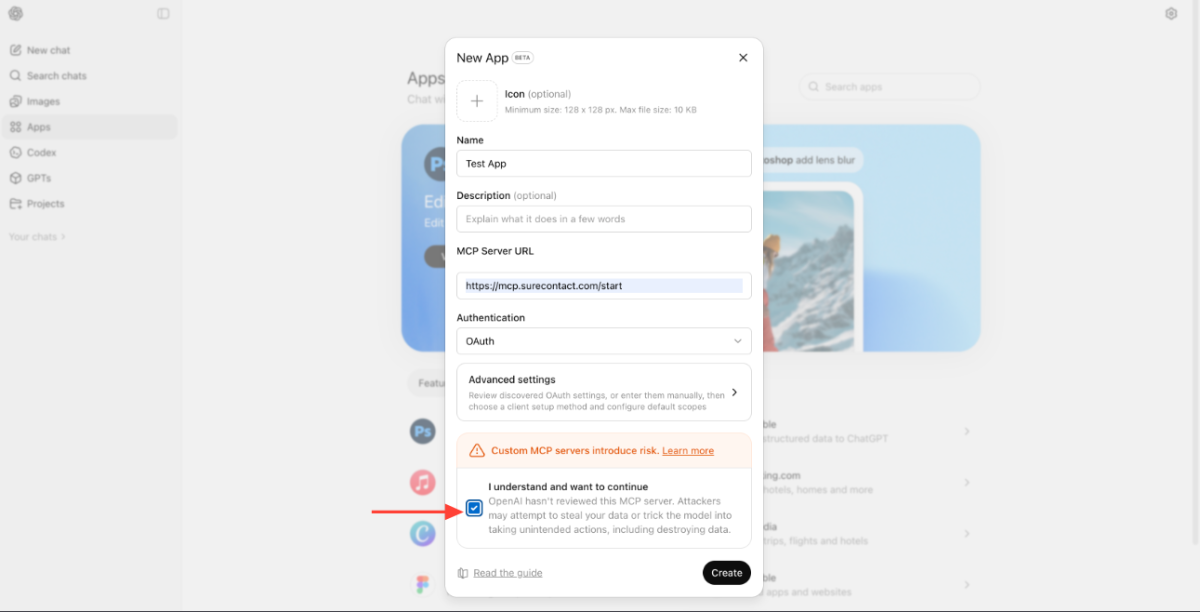
- Click Create.
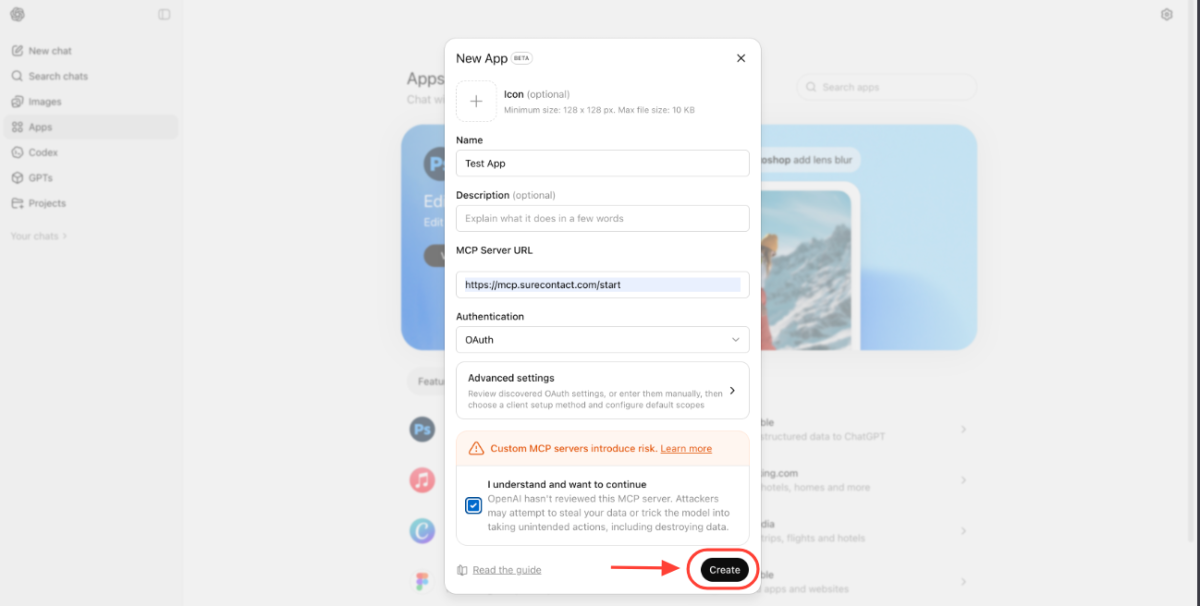
Step 4: Authorize SureContact
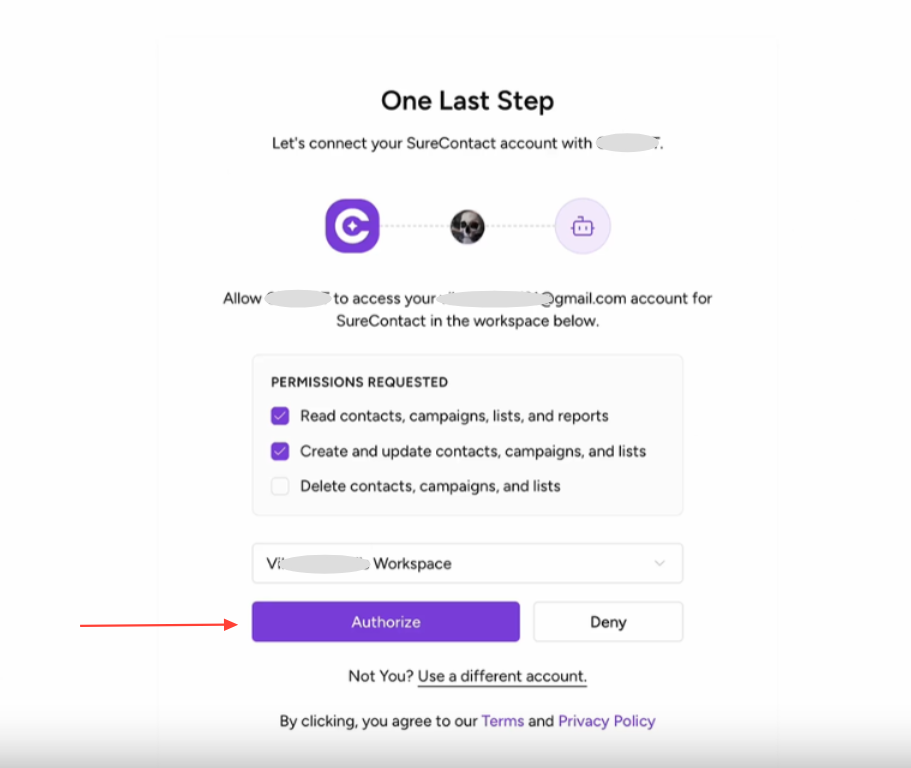
- A popup will appear asking permission to connect with your SureContact workspace.
- Click Authorize to continue.
Step 5: Verify the App Connection
- Once authorized, the app will be added to your ChatGPT Apps list.
- You can view it by going to:ChatGPT
Profile → Settings → Apps. - Inside the app, you will also be able to see the tools available from SureContact MCP.
Step 6: Start Using SureContact in ChatGPT
- Open a new chat in ChatGPT.
- Click the + (Plus) button.
- Select your newly created SureContact app.
- Start interacting with SureContact using prompts such as:
- “Show me contacts added today.”
- “Add this contact to the VIP Customers list.”
- “Create a draft email campaign.”
ChatGPT will now be able to securely interact with SureContact using MCP.
Summary
SureContact MCP allows your AI to:
✔ Connect securely
✔ Perform real actions
✔ Follow your natural language commands
✔ Automate tasks without coding
Need Help?
If you need any assistance, feel free to contact our support team at [email protected].
We don't respond to the article feedback, we use it to improve our support content.