
- Introduction to SureContact Dashboard
- How to Install and Connect the SureContact WordPress Plugin
- What Do Contact Fields Mean in the SureContact WordPress Plugin
- How to Invite Members to a Workspace in SureContact
- How to Switch Organizations in SureContact
- Workspace-Level Contact Allocation in SureContact
- Workspace-Level Timezone Settings in SureContact
- How to Add a Custom Tracking Domain in a Workspace in SureContact
- SureContact MCP Server
- Creating Forms in SureContact
- Create Forms & assign lists & tags
- Multi Language Support(WordPress)
- Page Visit Tracking Guide (WordPress)
- Setup SMTP in SureContact
- Email Campaigns in SureContact
- How to Add a Preferences URL in Your Emails
- How to Share Email Templates in SureContact
- Spintax Feature in SureContact
- Deleting Sent Campaigns in SureContact
- A/B Testing Integration Guide
- How to Add an Unsubscribe Link in Your Emails
- Analyzing a Campaign with AI (Spam & Ethics Check)
- FluentCRM Integration with SureContact
- SureContact Third-Party Integration — Step-by-Step Guide
- Fluent Forms Integration with SureContact
- SureForms Integration with SureContact
- WPForms Integration with SureContact
- Bulk Sync WordPress Users to SureContact
- Contact Form 7 Integration with SureContact
- Sync WooCommerce Customers with SureContact
Create Forms & assign lists & tags
SureContact forms let you collect contact information and automatically add submitters to specific lists and tags the moment they submit. This is useful for segmenting new contacts, triggering automations, or organizing sign-ups by campaign or interest.
This guide walks you through creating a form, configuring fields, setting up auto-assignment of lists and tags, and publishing and sharing the form.
1. Creating a New Form
1. Go to Forms in the left sidebar.
- Click Forms in the left navigation panel. The Forms list page opens, showing all existing forms with their status, submission counts, and creation dates.
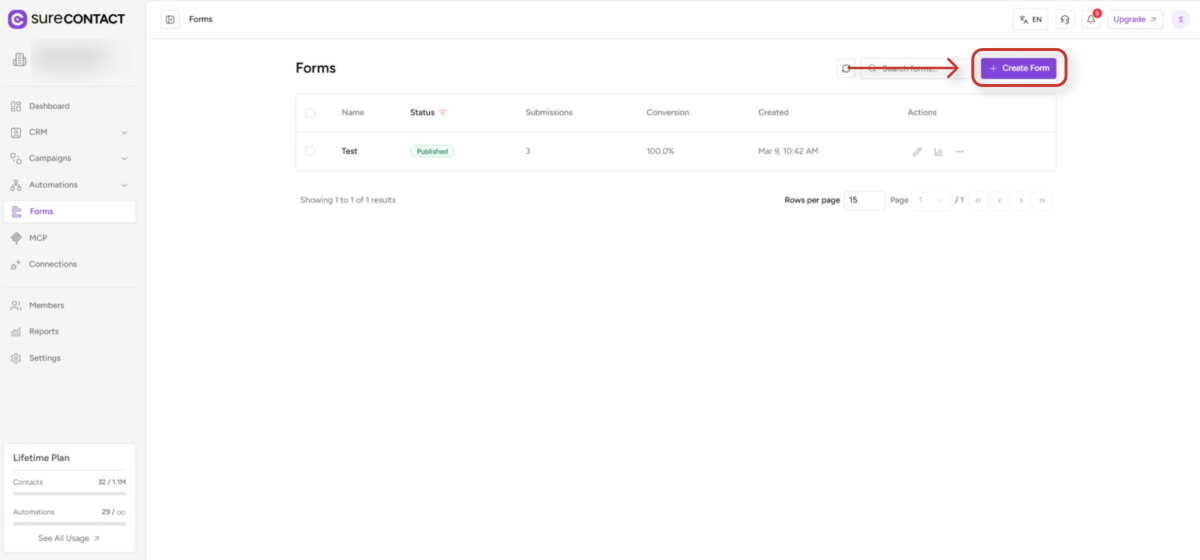
2. Click + Create Form in the top-right corner.
- The Create New Form dialog appears.
- Enter a Form Name in the text field (for example, “Newsletter Signup” or “Contact Us”).
- Optionally add a Description to help identify the form’s purpose.
- Click Create Form to confirm.
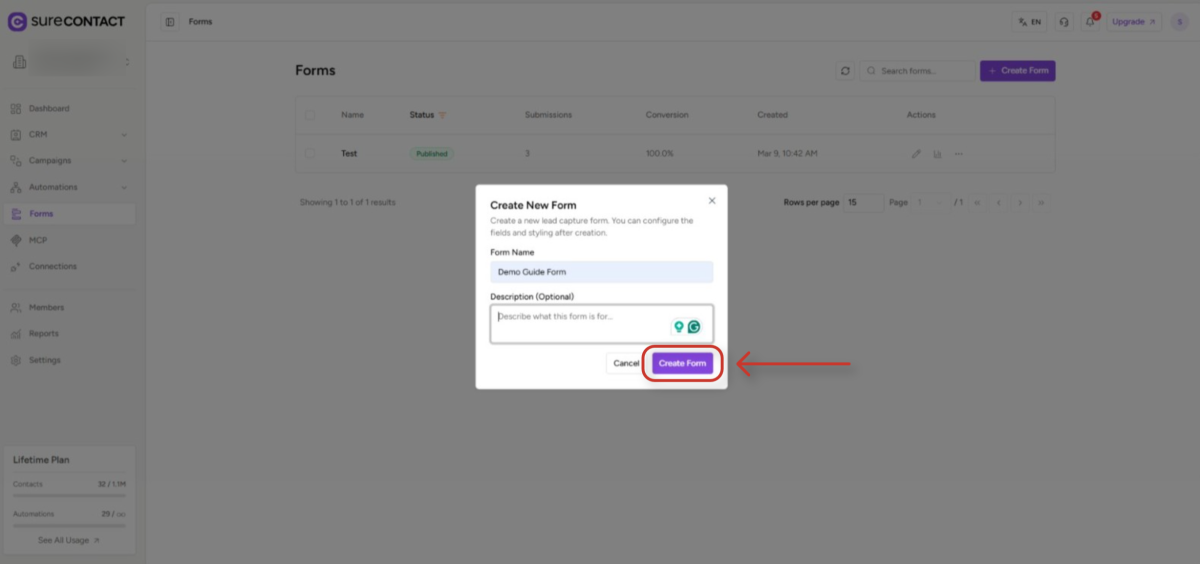
SureContact creates the form with a default Email field already added and opens the full-screen form builder.
2. The Form Builder Overview
The form builder opens with three panels:
- Left icon strip – three tab icons that switch the left panel between Add Fields, Edit Field, and Style views.
- Left panel – context-sensitive controls for the active tab.
- Center canvas – a live preview of your form as it will appear to visitors.
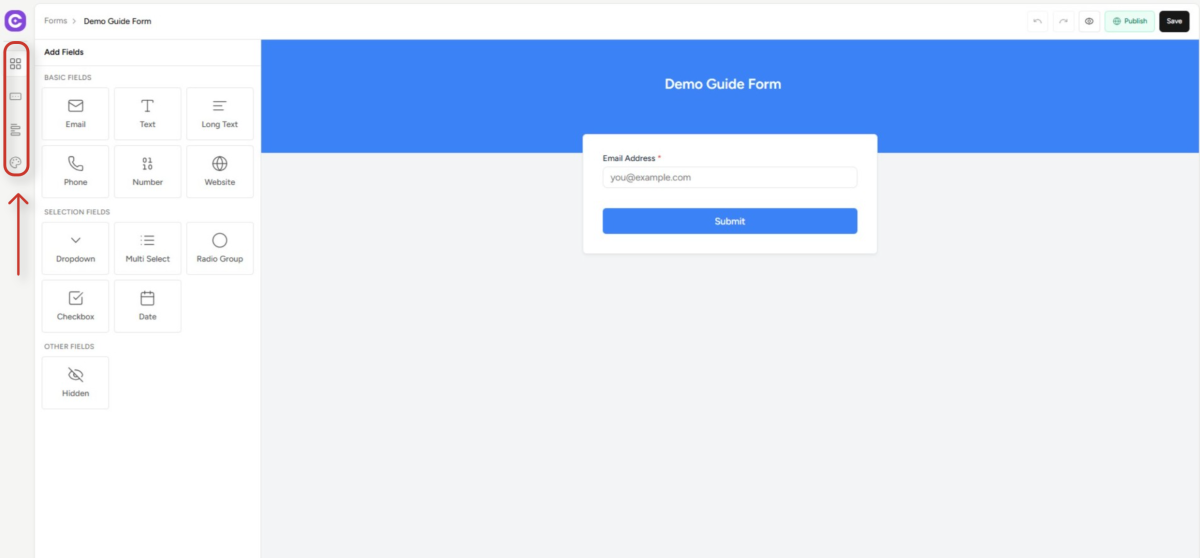
The four tabs on the left icon strip are:
- Add Fields (grid icon) – drag or click field types onto the canvas.
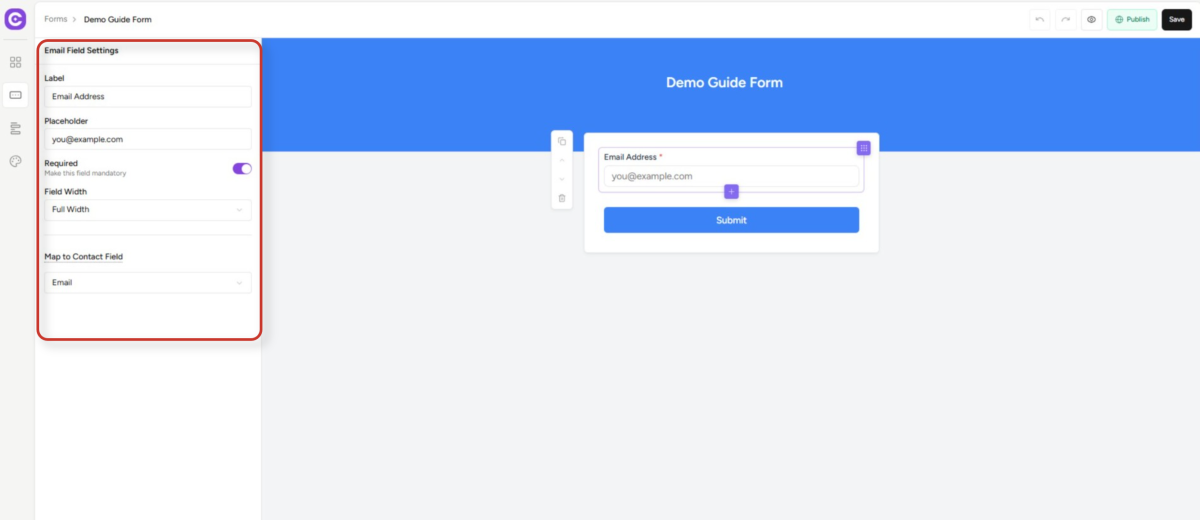
- Edit Field (field icon) – configure the selected field’s label, placeholder, required toggle, width, and contact field mapping.
- Form Settings – add slug, assign list, and tags
- Style (palette icon) – customize colors, typography, spacing, and banner appearance.
3. Building Your Form
3.1 Adding Fields
- Click the Add Fields tab (grid icon) on the left icon strip.
- The palette shows three groups of field types: Basic Fields, Selection Fields, and Other Fields.
- Drag a field type from the palette onto the canvas, or click it to add it at the bottom of the form.
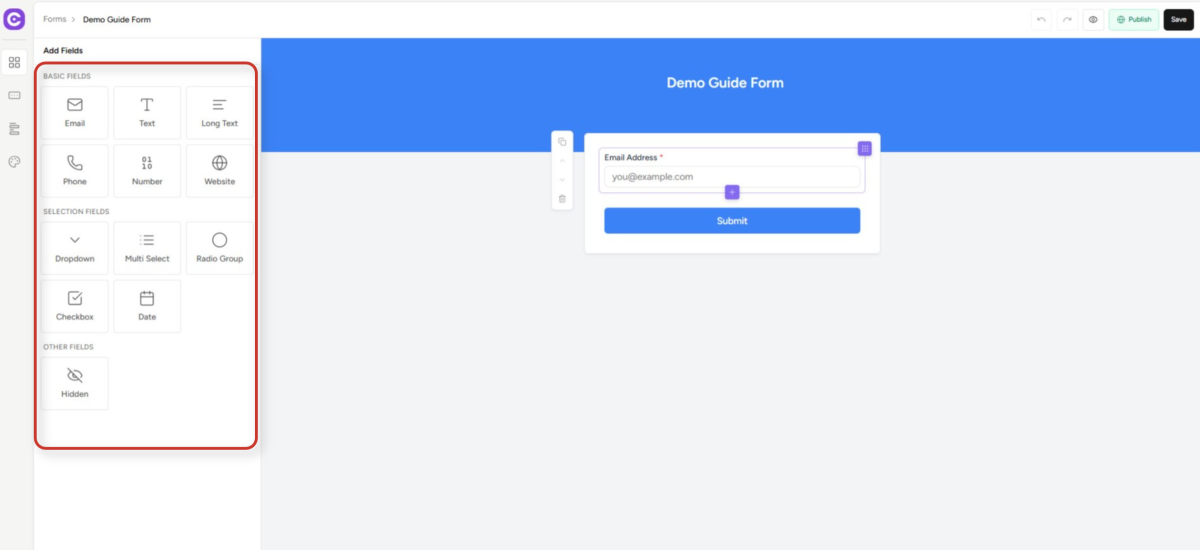
Available field types include:
- Basic Fields – Text, Email, Phone, Number, Website, Long Text.
- Selection Fields – Dropdown, Multi-Select, Radio Group, Checkbox, Date.
- Other Fields – Hidden Field.
3.2 Configuring Each Field
- Click any field on the canvas to select it.
- The Edit Field panel opens automatically on the left.
- Set the Label (visible to users), Placeholder text, whether the field is Required, and its Field Width.
- Use Map to Contact Field to link the submitted value directly to a SureContact contact property (e.g., Email, Phone, First Name).
4. Setting Up Auto-Assign Lists & Tags
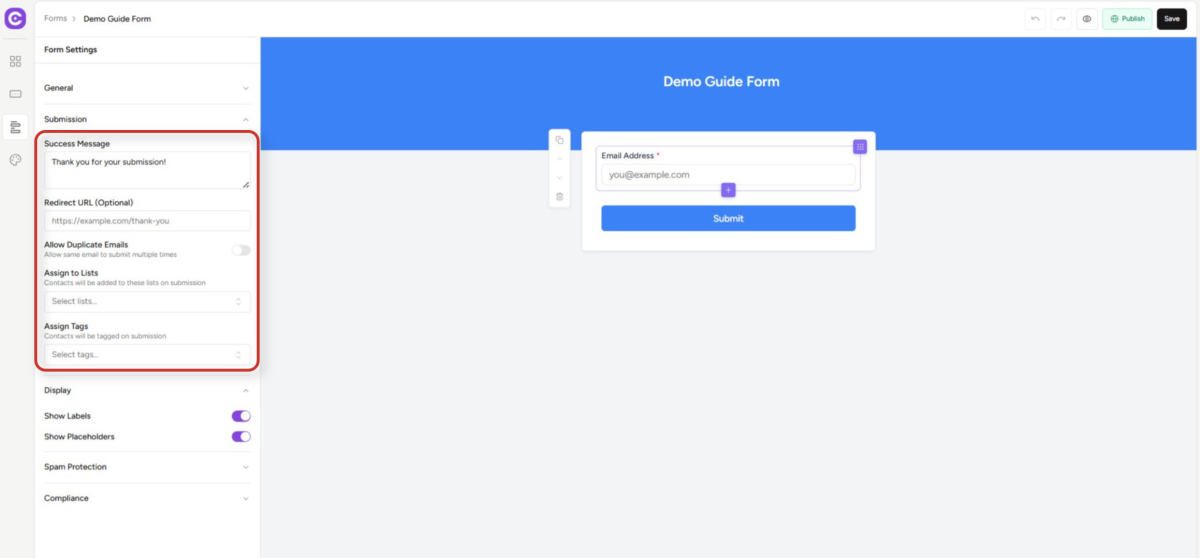
Auto-assignment is configured in the Form Settings panel under the Submission section.
4.1 Open Form Settings
- Click the Form Settings tab (middle icon) on the left icon strip.
- The panel shows General and Submission accordion sections.
- Expand the Submission section to reveal all assignment and behavior controls.
4.2 Assigning Lists
- In the Assign to Lists field, click the dropdown and search for the lists you want to add submitters to.
- Select one or more lists. Each selected list appears as a colored tag chip in the field.
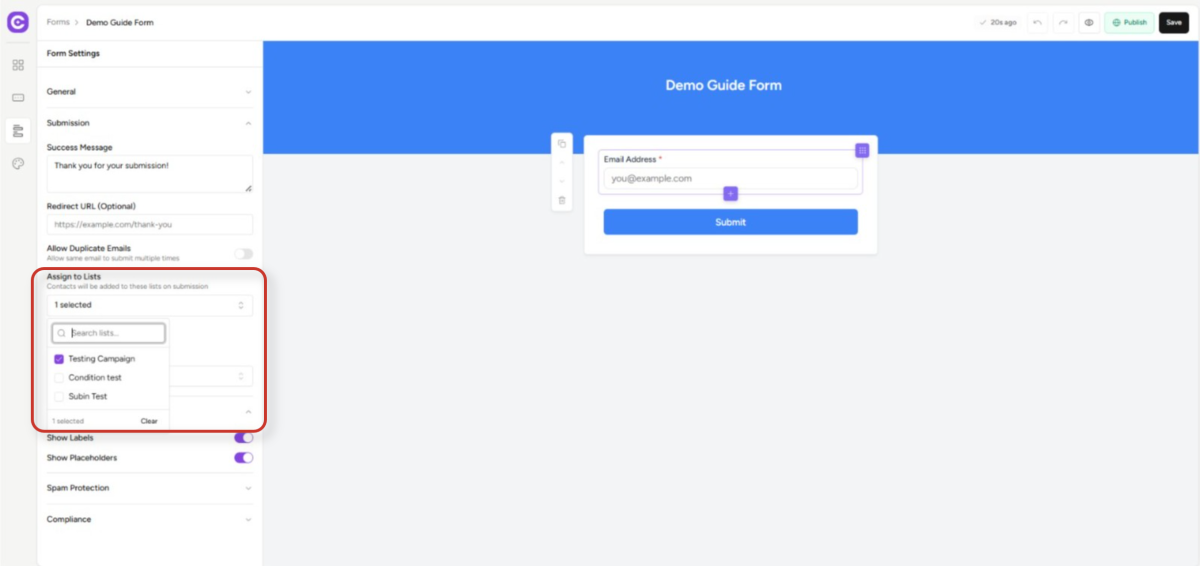
Note: Only static lists appear here. Dynamic (rule-based) lists cannot be assigned via forms.
4.3 Assigning Tags
- In the Assign Tags field, click the dropdown and search for tags.
- Select one or more tags to apply on each submission.
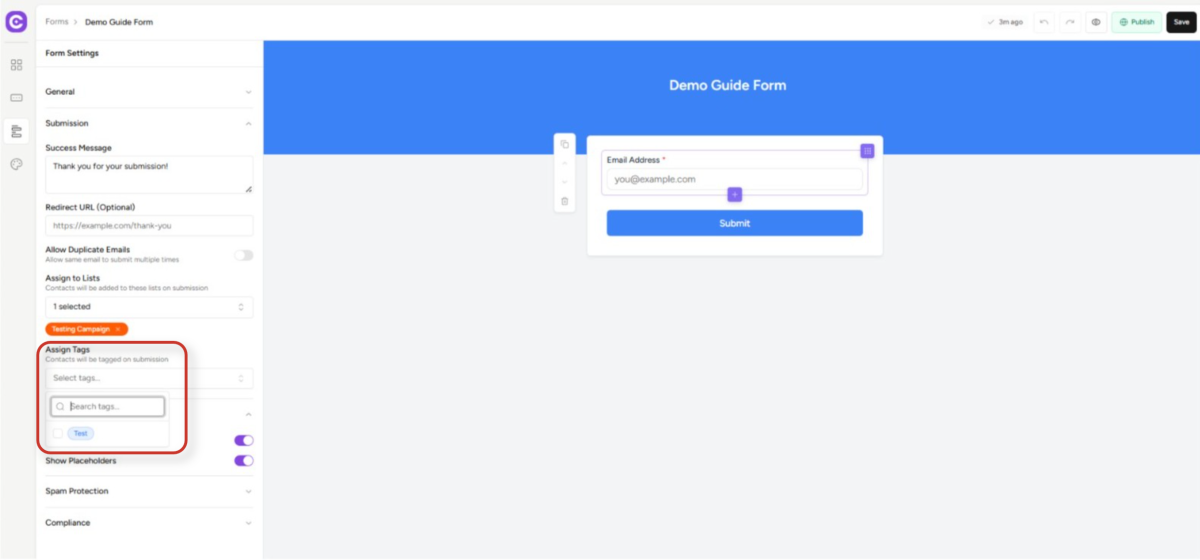
Tip: You can create a new list or tag on the fly, type a name that doesn’t exist yet and select the Create option that appears in the dropdown.
Lists and tags are assigned on every form submission, whether the contact is new or already exists. If the contact already belongs to the assigned list or has the assigned tag, no duplicate is created.
5. Configuring Other Submission Settings
While in the Submission section, you can also configure the following:
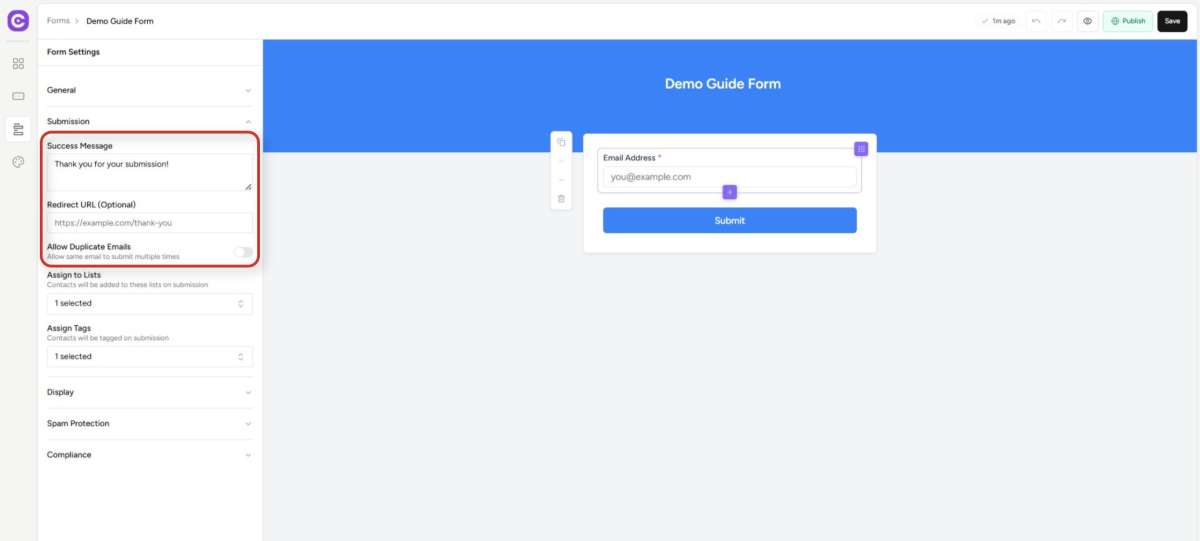
- Success Message – the message shown to the contact after they submit the form.
- Redirect URL – redirect the contact to a specific URL after submission instead of showing a success message.
- Allow Duplicate Emails – allow the same email address to submit the form more than once.
6. Additional Form Settings
The Form Settings panel has additional accordion sections beyond Submission:
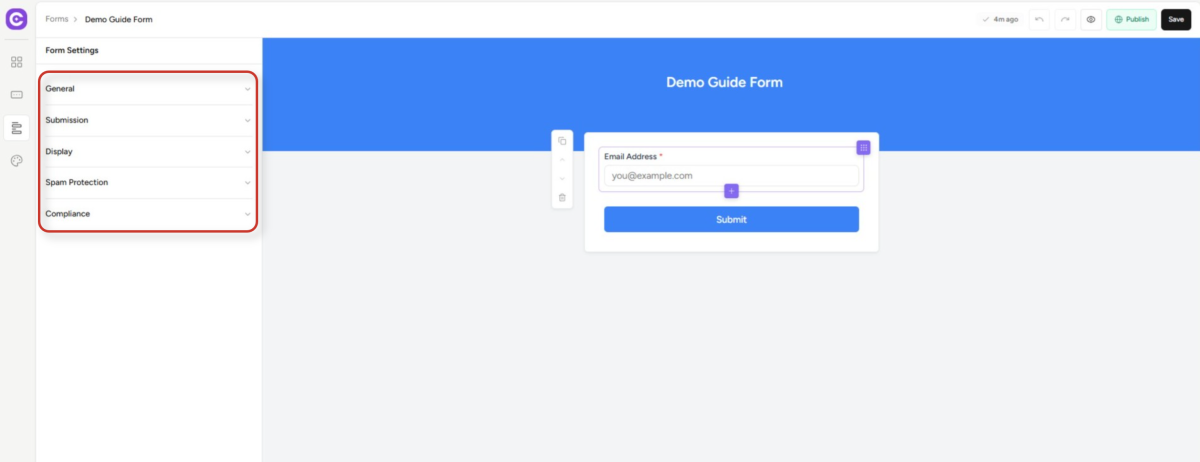
- General – configure the form’s URL slug.
- Display – control submit button text, label visibility, and placeholder visibility.
- Spam Protection – enable a honeypot field, reCAPTCHA, or rate limiting per IP address.
- Compliance – add a privacy policy link or require a GDPR consent checkbox.
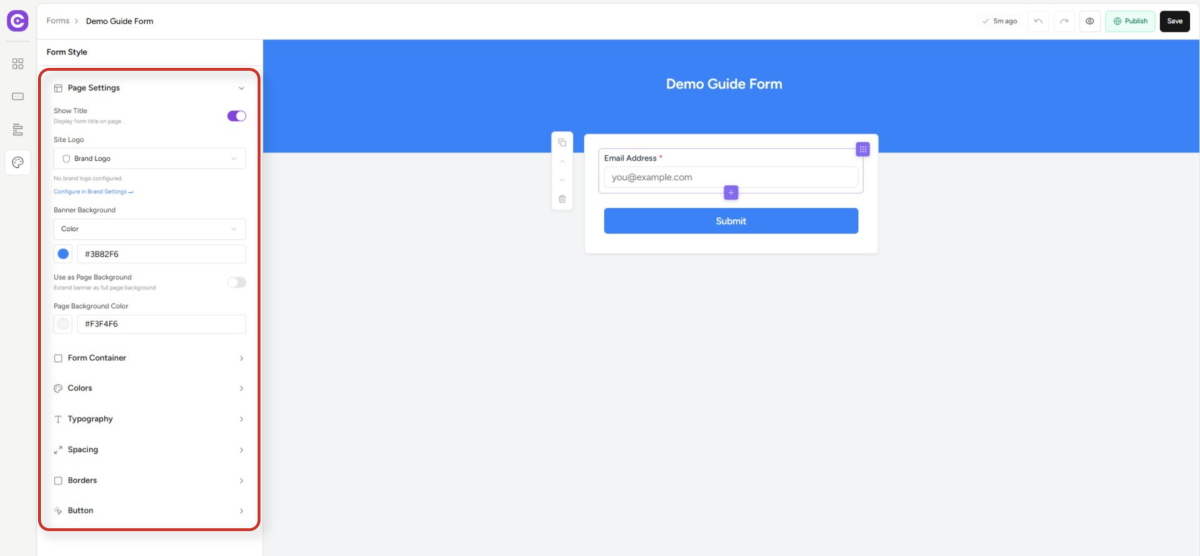
7. Styling Your Form
7. Click the Style tab (palette icon) on the left strip.
- Customize the banner background color and page background color under Page Settings.
- Adjust form container width, form background, border radius, and shadow under Form Container.
- Use Colors, Typography, Spacing, Borders, and Button sections for fine-grained brand matching.
- All changes preview live on the canvas as you make them.
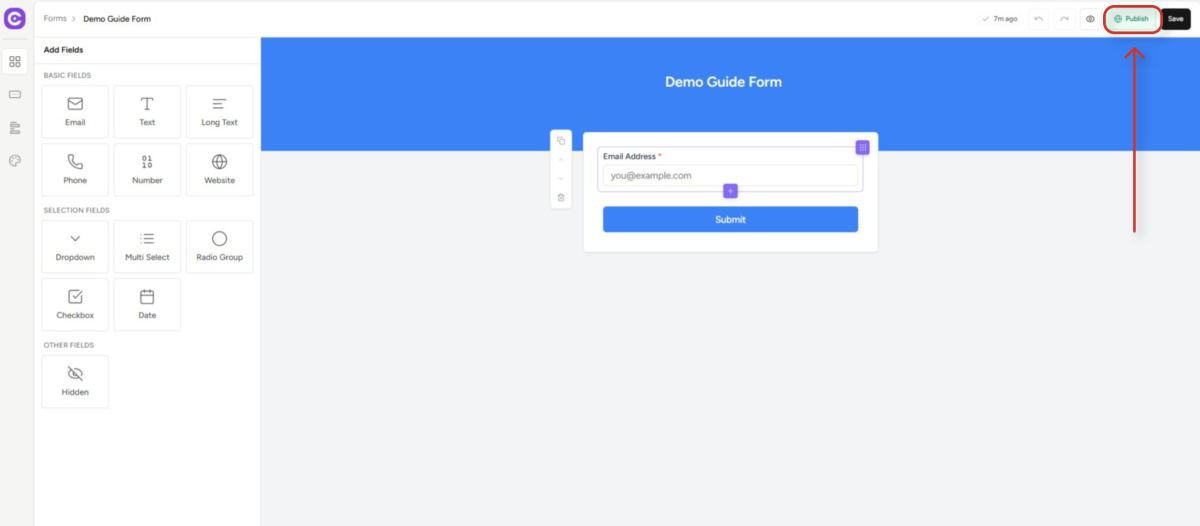
8. Publishing the Form
8. Click Publish in the top-right corner of the builder.
- If GDPR consent is enabled in Compliance settings, a Consent field must be present on the form, SureContact will prompt you if it is missing before publishing.
- The form status changes from Draft to Published.
- The Publish button changes to a green Published indicator in the header.
9. Sharing or Embedding the Form
After publishing, click the Embed / Share button in the header to access three sharing options:
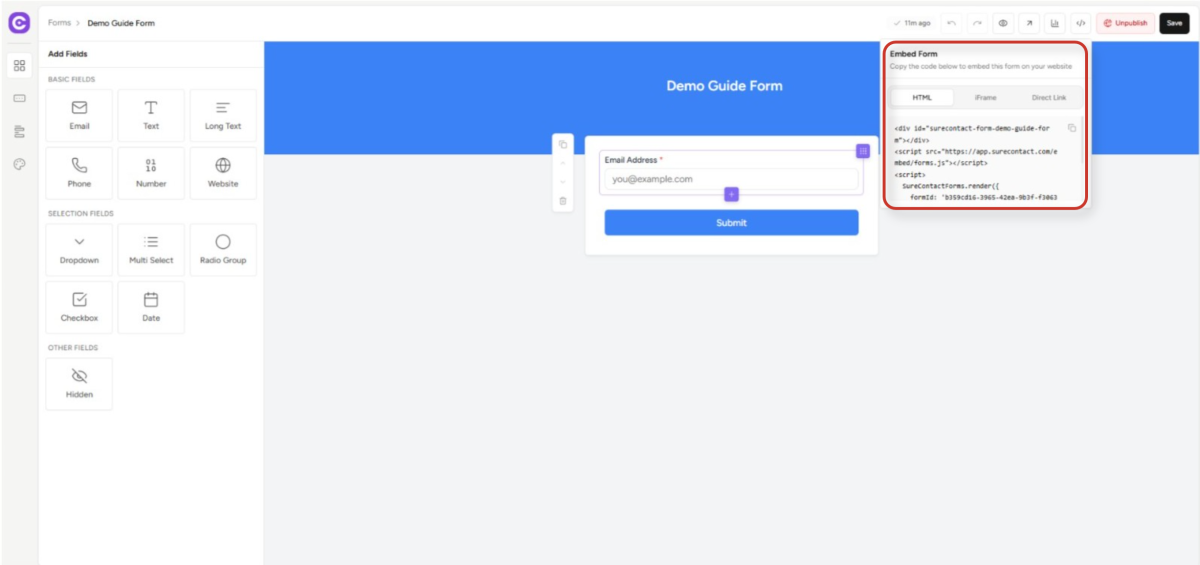
- HTML Embed – a JavaScript snippet you paste into any webpage to render the form inline.
- iFrame – a self-contained iframe element for embedding in external sites or platforms that don’t support scripts.
- Direct Link – a standalone public URL you can share directly via email, social media, or QR code.
10. Viewing Submissions
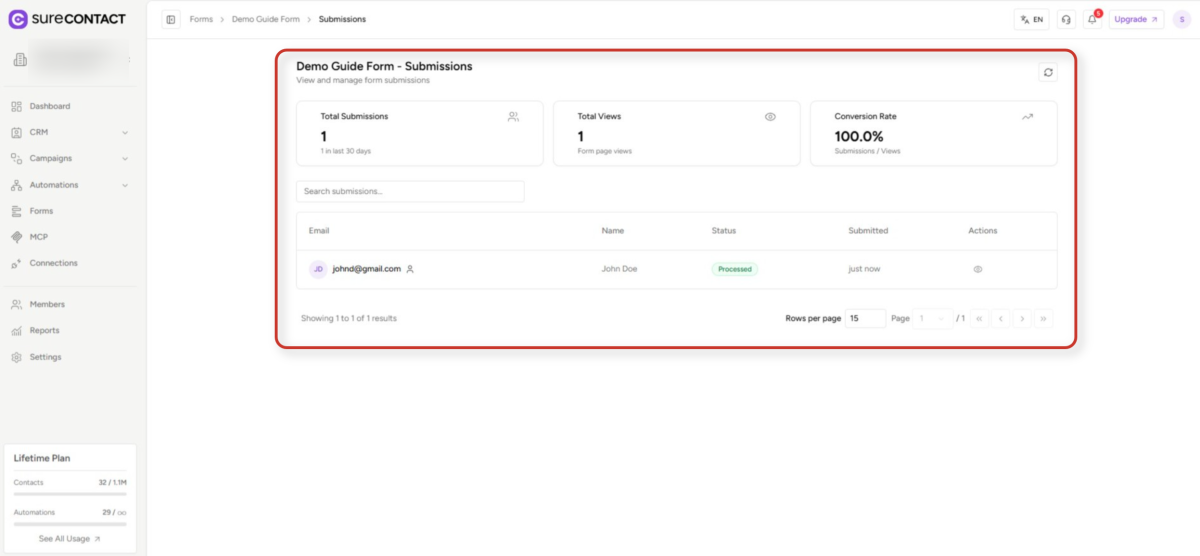
After contacts start submitting, you can review responses and confirm lists and tags were applied correctly:
- Go to Forms in the left sidebar and open your form.
- Click the Submissions tab to see a timestamped list of all responses.
- Open any contact’s name to go to their profile and verify the assigned lists and tags appear under their record.
Need Help?
If you need any assistance, please email [email protected], and our support team will be happy to help you.
We don't respond to the article feedback, we use it to improve our support content.