
- Introduction to SureContact Dashboard
- How to Install and Connect the SureContact WordPress Plugin
- What Do Contact Fields Mean in the SureContact WordPress Plugin
- How to Invite Members to a Workspace in SureContact
- How to Switch Organizations in SureContact
- Workspace-Level Contact Allocation in SureContact
- Workspace-Level Timezone Settings in SureContact
- How to Add a Custom Tracking Domain in a Workspace in SureContact
- SureContact MCP Server
- Creating Forms in SureContact
- Setup SMTP in SureContact
- Email Campaigns in SureContact
- How to Add a Preferences URL in Your Emails
- How to Share Email Templates in SureContact
- Spintax Feature in SureContact
- Deleting Sent Campaigns in SureContact
- A/B Testing Integration Guide
- How to Add an Unsubscribe Link in Your Emails
- Analyzing a Campaign with AI (Spam & Ethics Check)
- FluentCRM Integration with SureContact
- SureContact Third-Party Integration — Step-by-Step Guide
- Fluent Forms Integration with SureContact
- SureForms Integration with SureContact
- WPForms Integration with SureContact
- Bulk Sync WordPress Users to SureContact
- Contact Form 7 Integration with SureContact
- Sync WooCommerce Customers with SureContact
Spintax Feature in SureContact
SureContact’s Spintax feature lets you write email content with multiple variations separated by pipe characters inside curly braces, for example, {Hi|Hello|Hey}; so that each recipient receives a randomly selected version of the message. This keeps your campaigns feeling personal and varied, and helps improve deliverability by reducing identical sends.
This guide covers how to use Spintax in two scenarios: sending an Email Campaign to a contact list and triggering a personalized email through an Automation workflow.
How Spintax Works
Spintax uses a simple syntax written directly in any Rich Text email editor. Wrap alternatives in curly braces separated by pipe characters:
{option1|option2|option3}
When the email is sent, SureContact randomly picks one option per recipient. You can use Spintax in the Subject line and in the Email Body. Nesting is also supported:
{We’ve got {something special|exciting news}|There’s {a great opportunity|something you’ll love}}
Example full template used in this guide:
{Hi|Hello|Hey} {there|friend}, {I wanted to reach out|Just checking in}!
{We’ve got something special|There’s exciting news} for you {today|this week}.
Scenario 1: Using Spintax in an Email Campaign
Use this approach to send a one-time campaign to a large audience. Each contact in the selected list will receive a uniquely varied version of your email.
1. Go to Email Campaigns
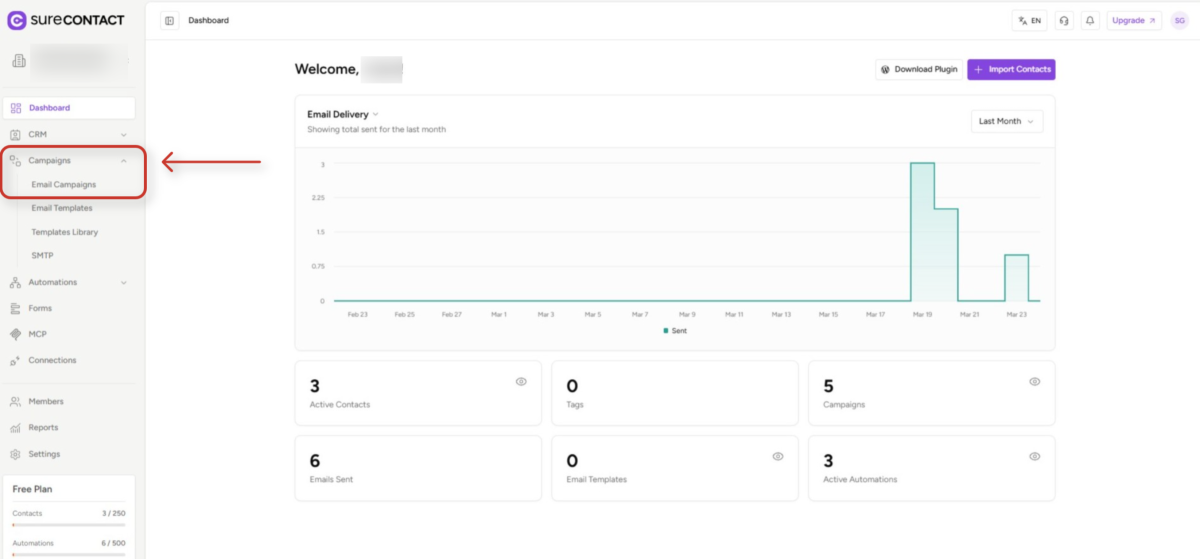
- In the left sidebar, click Campaigns, then select Email Campaigns.
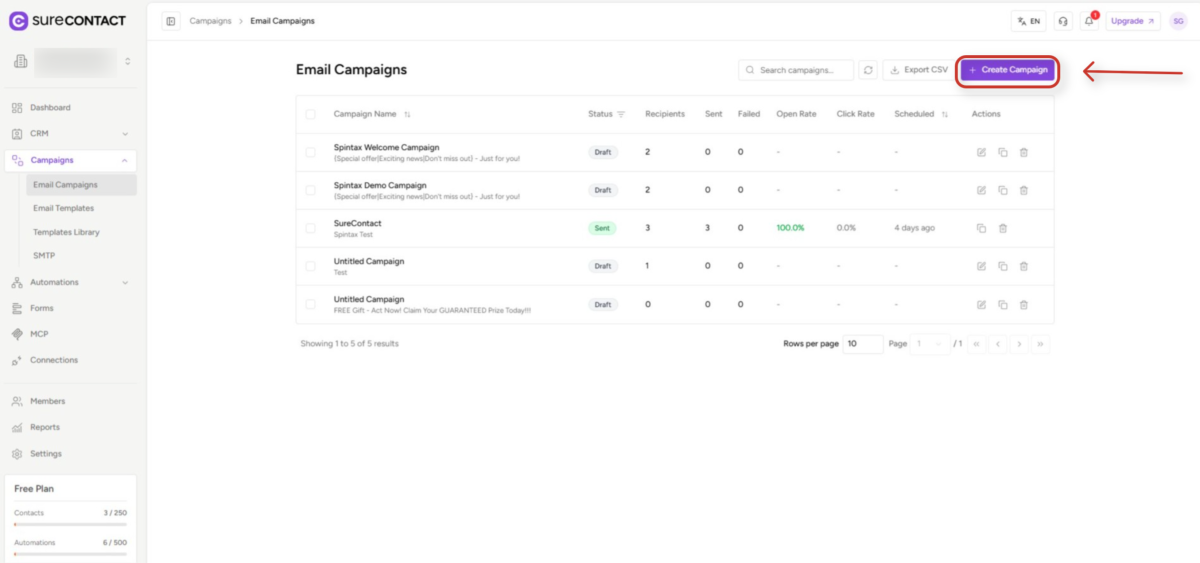
- You will see the list of existing campaigns. Click the Create Campaign button in the top-right corner.
2. Name Your Campaign
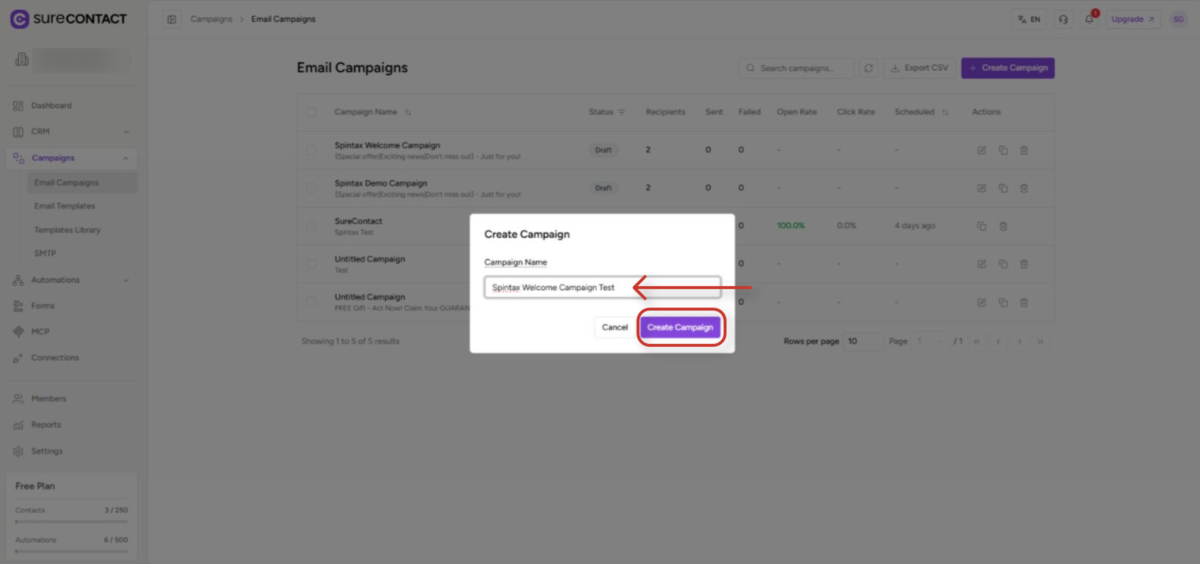
- A modal dialog will appear. Enter a descriptive name for your campaign (e.g. “Spintax Welcome Campaign”).
- Click Create Campaign to proceed.
3. Choose the Rich Text Editor
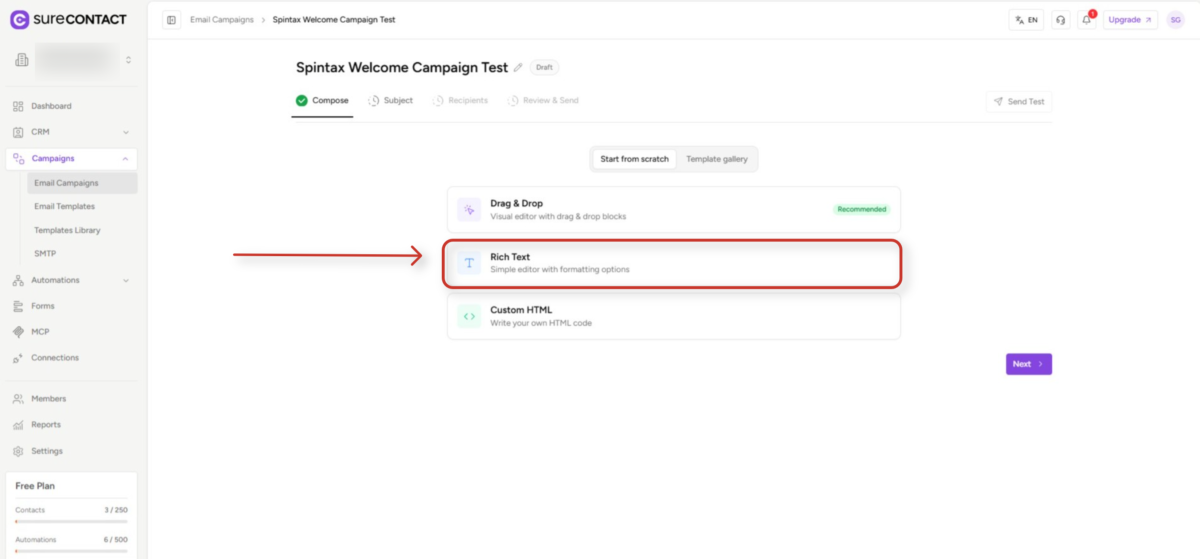
- On the Compose step, you will see three editor options: Drag & Drop, Rich Text, and Custom HTML.
- Select Rich Text — this is the editor where you can type Spintax syntax directly into the email body.
4. Type Your Spintax Content
- The Rich Text Editor opens. Click inside the editor body and type your Spintax email content.
- Write your variations using curly braces with pipe-separated options. For example: {Hi|Hello|Hey} {there|friend}, {I wanted to reach out|Just checking in}!
- Do not use any special mode or toggle — just type the Spintax syntax directly into the editor as plain text.
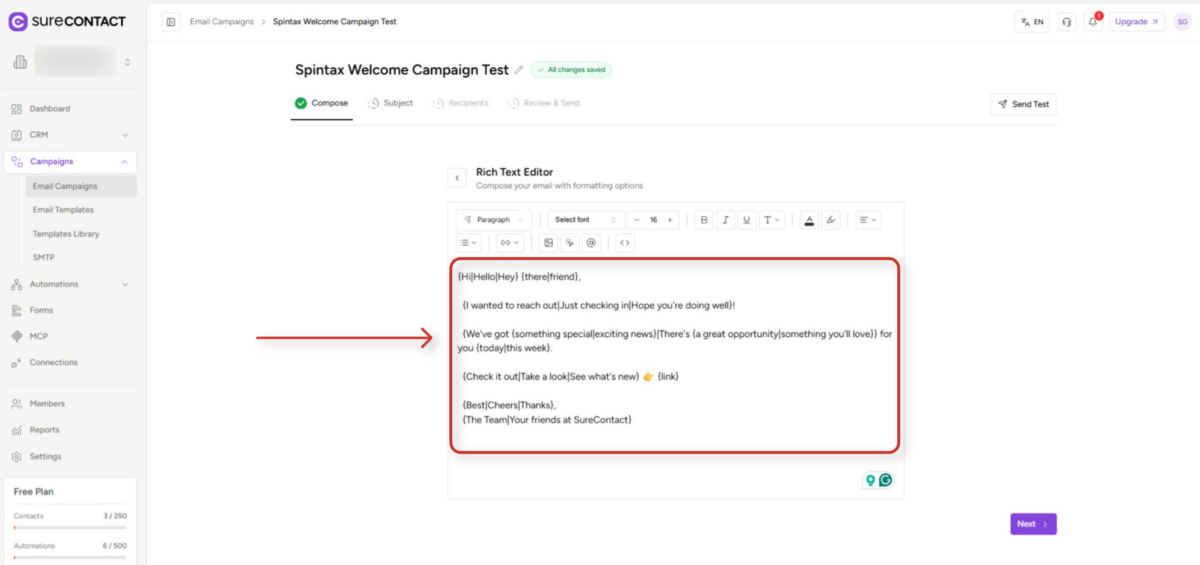
5. Add a Spintax Subject Line
- Click Next or navigate to the Subject tab.
- In the Email Subject field, type your Spintax subject line, for example: {Special offer|Exciting news|Don’t miss out} – Just for you!
- Each recipient will see a different subject line, which improves open rates.
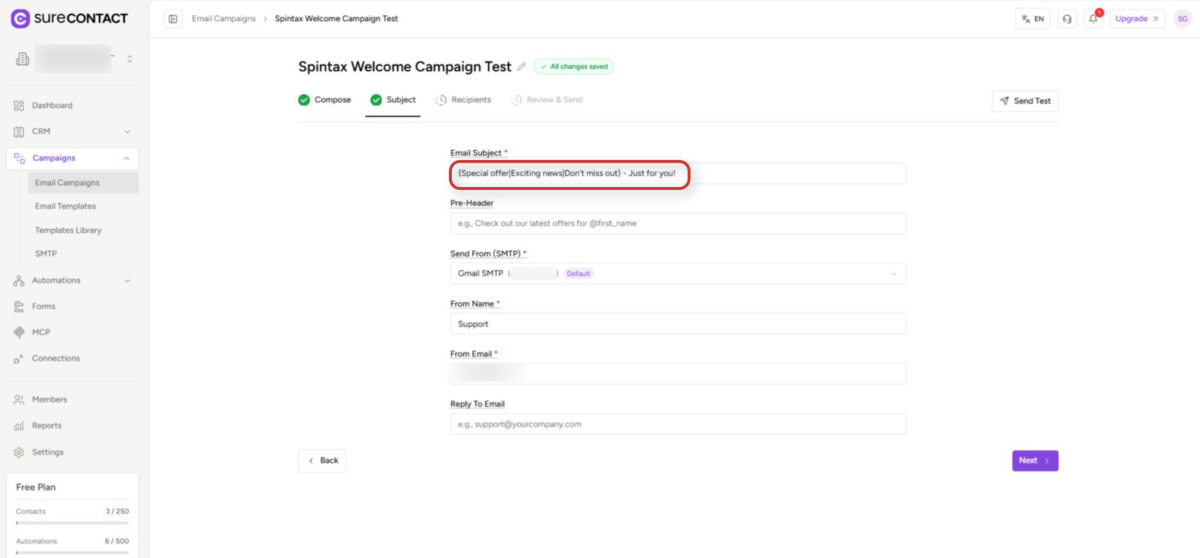
6. Select Recipients
- Navigate to the Recipients tab.
- Under Include Contacts, click the Lists dropdown and select your target list (e.g. Spintax Test).
- The number of unique recipients will be calculated and shown below.
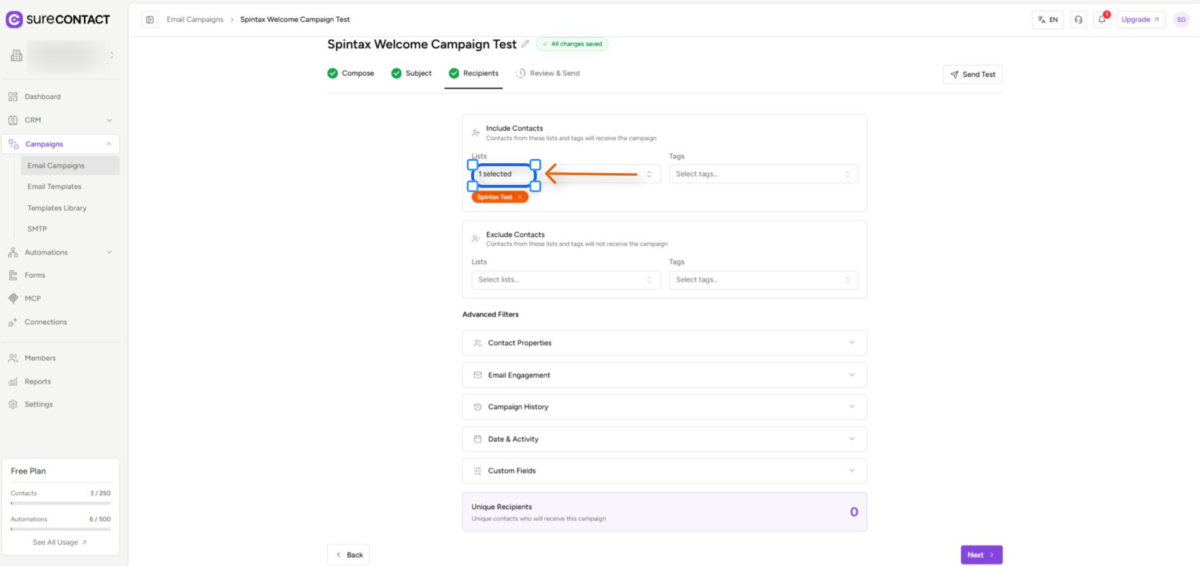
7. Review and Send Immediately
- Navigate to the Review & Send tab. Verify the campaign information, email preview, and recipient list.
- Under Send Timing, select Send immediately.
- Click Send Campaign to dispatch the campaign. Each recipient will receive their unique variation of the email.
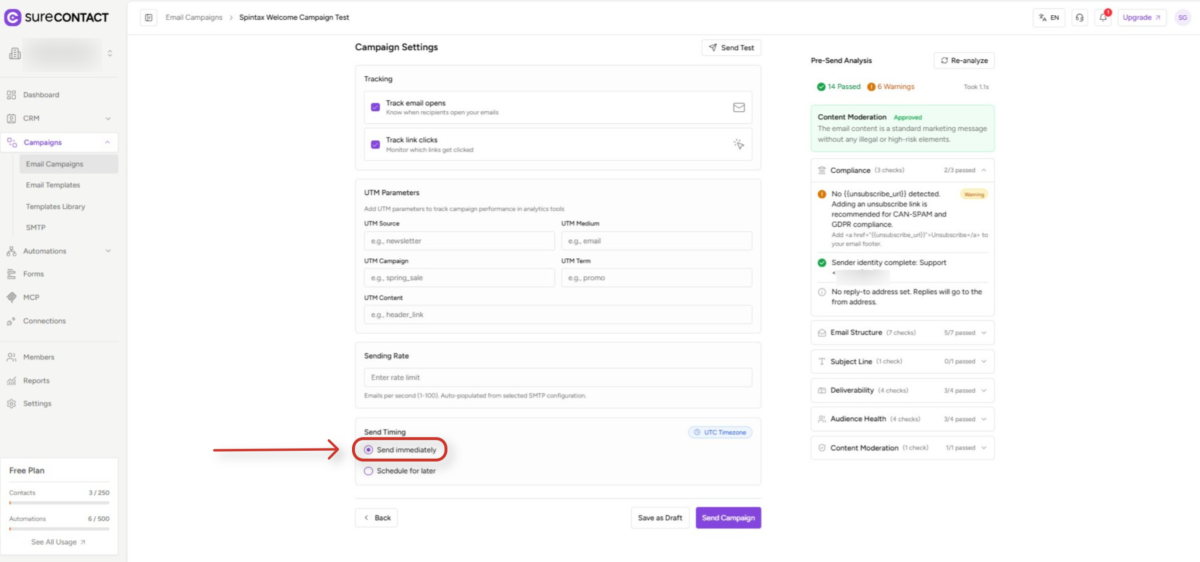
Scenario 2: Using Spintax in an Automation Workflow
Use this approach to automatically send a personalised Spintax email each time a specific event occurs — for example, when a new contact is added to SureContact. Every contact who triggers the workflow will receive a unique email variation.
1. Go to Automations > Workflows
- In the left sidebar, click Automations, then select Workflows.
- Click Create Workflow, enter a name (e.g. “Spintax Welcome Email”), and click Create.
2. Add the Contact Created Trigger
- The workflow canvas opens. Click Add Trigger to open the trigger picker.
- Under Contact Events, select Contact Created. This triggers the workflow every time a new contact is added.
- The trigger node will appear on the canvas in amber colour.
3. Add a Send Email Action
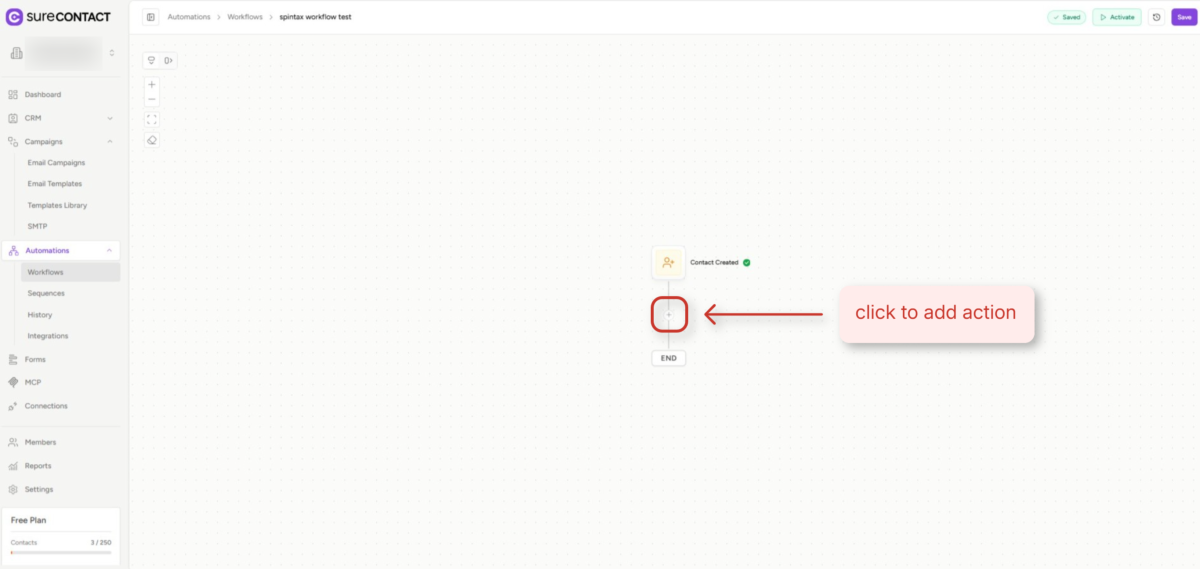
- On the canvas, click the “+” button between the Contact Created node and the END node.
- The Add Action panel opens on the right. Click Communication, then select Send Email.
4. Configure the Email with Spintax
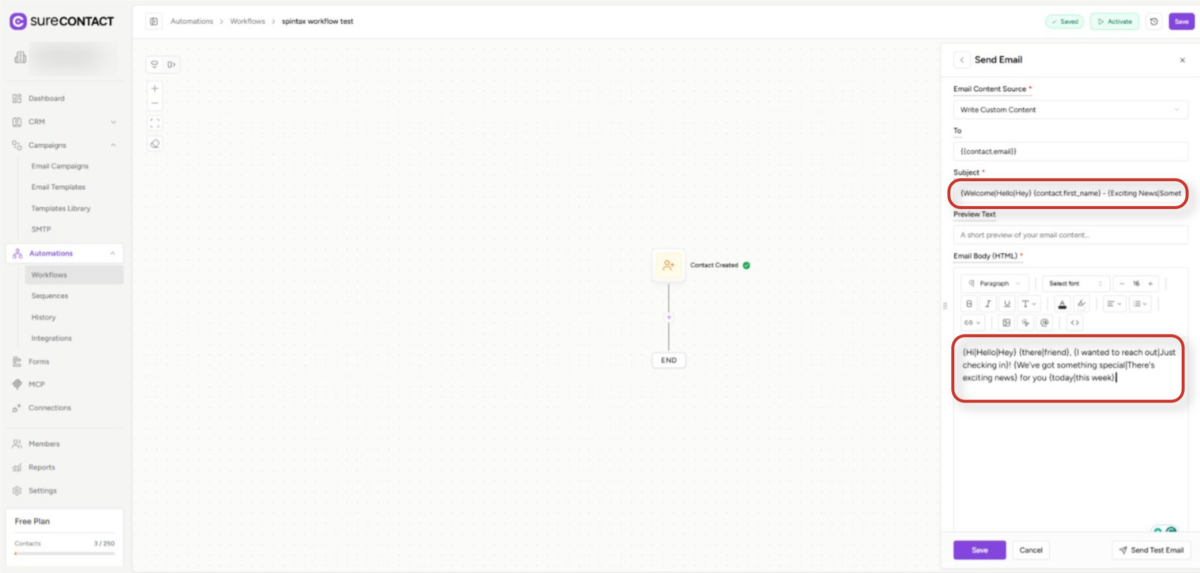
- In the Send Email panel, set Email Content Source to Write Custom Content.
- In the Subject field, type your Spintax subject line, e.g.: {Welcome|Hello|Hey} {contact.first_name} – {Exciting News|Something Special} for You!
- Click inside the Email Body editor and type your Spintax content directly — no special mode is needed.
- Example body: {Hi|Hello|Hey} {there|friend}, {I wanted to reach out|Just checking in}! {We’ve got something special|There’s exciting news} for you {today|this week}.
5. Save and Activate the Workflow
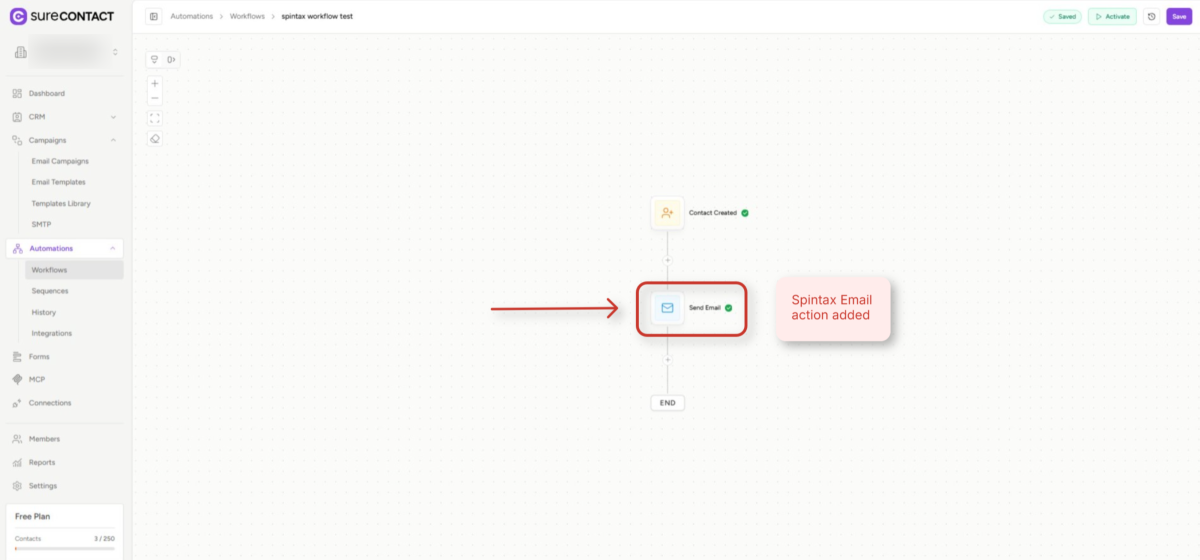
- Click Save to save the Send Email action. The node will appear on the canvas with a green checkmark (✓).
- Your workflow now shows: Contact Created → Send Email ✓ → END.
- Click Activate in the top-right corner to enable the workflow. From this point on, every new contact added will receive a unique Spintax email.
Need Help?
If you need any assistance, please email [email protected], and our support team will be happy to help you.
We don't respond to the article feedback, we use it to improve our support content.